How to Open Videos in Picture-in-Picture on Mac

thumbnail

Ever tried answering emails or working on something while watching a lecture, recipe video, or livestream on your Mac? The constant resizing of windows or jumping between tabs gets frustrating after a while.

Many people don’t know about (or never really try using) Picture-in-Picture on Mac, but it’s one of the easiest ways to multitask while watching videos. This guide explains how to use Picture-in-Picture on Mac in Safari, Chrome, YouTube, Netflix, and local video players like Elmedia Player.

What Is Picture-in-Picture Mode?

Picture-in-Picture mode plays your video in a small floating window above all apps. You can resize and drag it anywhere on the screen to continue watching while switching between windows or desktops.

People use PiP on Mac to:

  • Watch tutorials while following the steps in another app.
  • Keep a video playing while browsing, checking emails, or editing documents.  
  • Keep an eye on online meetings, streams, or presentations while working on something else.
  • Take notes while watching a lecture or webinar.
  • Keep news or podcasts playing passively while working.
  • Follow a workout video while using a music app or fitness tracker.

Does macOS Support PiP?

Yes, Picture-in-Picture mode has been built into macOS since Sierra (2016).

It works with videos on many websites and apps, particularly in Safari, and supports popular platforms like YouTube and Apple TV+ (though some services may restrict it). Chrome and Firefox also support PiP, while QuickTime Player does it for local files.

There is no single universal PiP shortcut for PiP on MacBook or desktop Mac, so the method depends on the app, browser, or website you are using.

How to Use Picture-in-Picture Mode for Online Videos on Mac

Most modern browsers, including Safari and Chrome, support PiP for online video playback. The option may appear in different menus, and the steps vary slightly between the two.

Safari

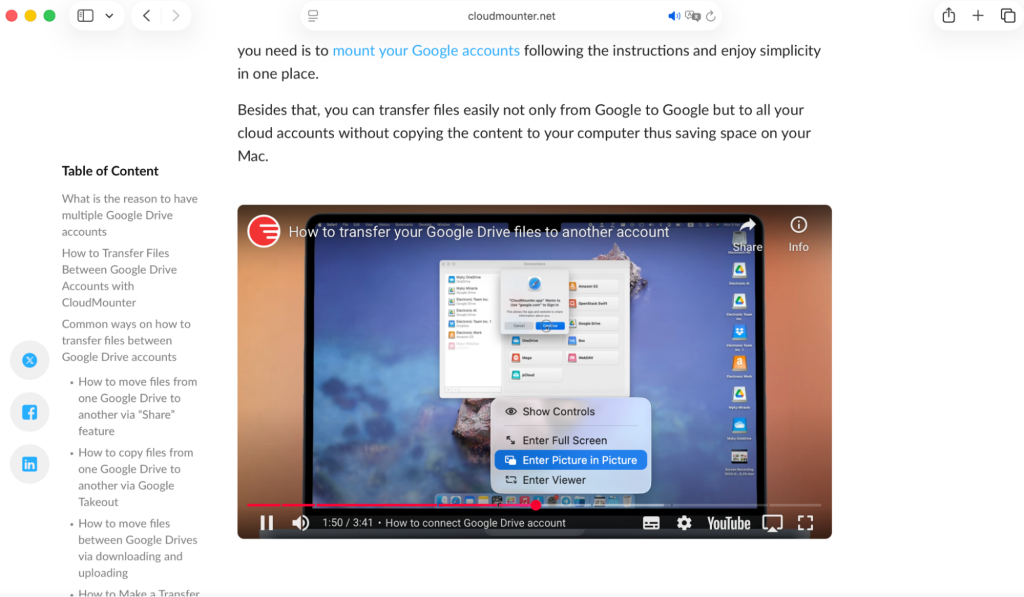
There are three ways to enable Picture-in-Picture on Safari. The easiest way is to right-click on the video and choose Enter Picture in Picture. If the website has its own video menu, right-click twice to open Safari’s menu.

Right-click twice to open Safari’s menu

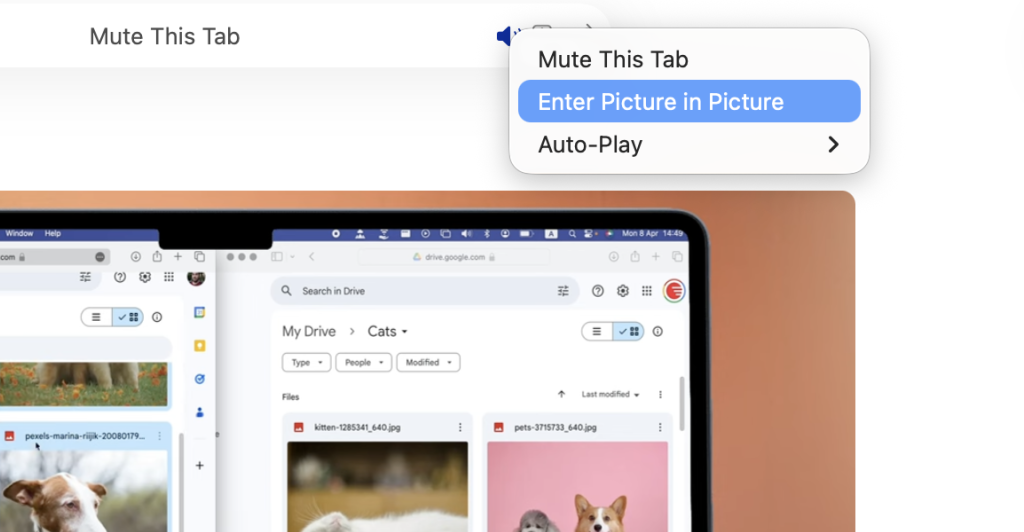
Another way is to play the video in Safari and look for the blue speaker icon in the address bar. Right-click it, then select Enter Picture in Picture.

Right-click the blue speaker icon in the address bar and choose Enter Picture in Picture

You can also Control-click the icon at the far left of the address bar and choose Enter Picture in Picture.

Control-click the icon on the left side of the address bar and choose Enter Picture in Picture

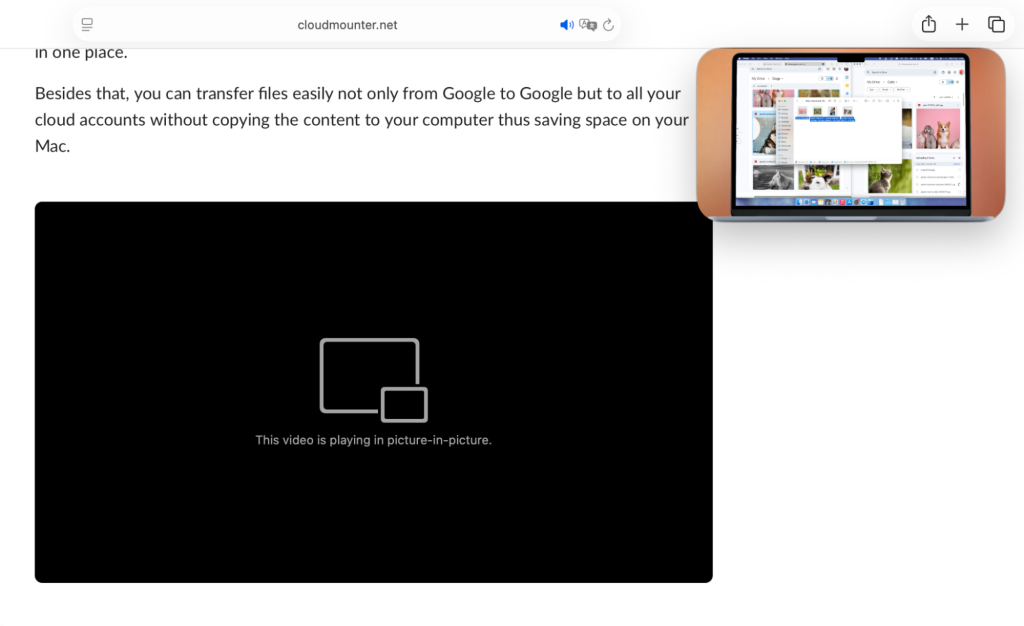
A minor limitation: You can resize and move the floating window, but it always snaps to a corner of the screen.

Watch videos in a small floating window while multitasking

Chrome

Google Chrome has PiP built into it. Here’s how to use it:

Open Chrome, play a video on any website (like YouTube). Right-click the video twice and choose Picture in Picture from the browser menu.

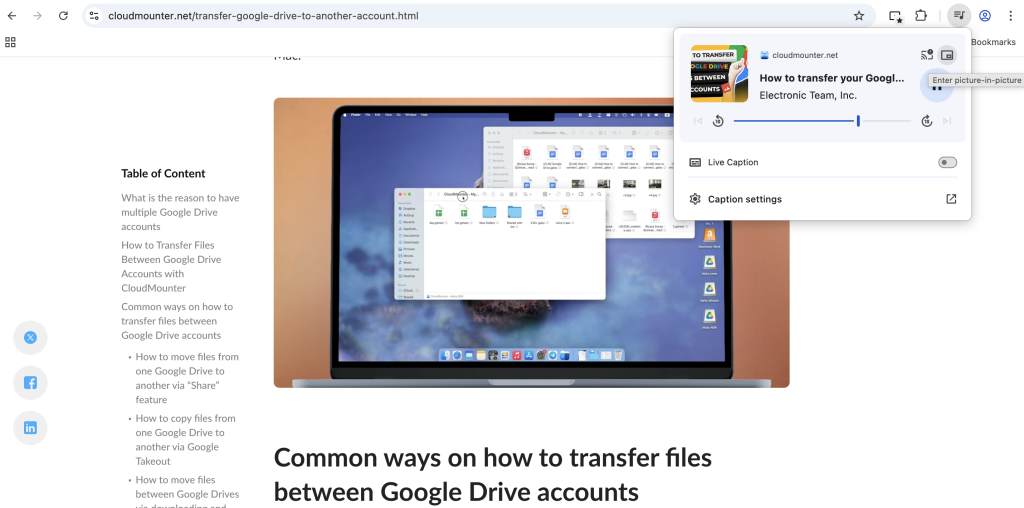
Another option is to use Chrome’s media controls. While a video is playing, click the music or video icon in the top-right corner of the browser window and select Picture in Picture from there.

Use Chrome's media controls to enable Picture in Picture

If a website blocks PiP, you can install Google’s official Picture-in-Picture extension from the Chrome Web Store and click the extension icon while a video is playing to pop it into a floating window.

Watch Local Videos in Picture-in-Picture Mode with Elmedia Player

If you want to use PiP on Mac for downloaded movies, TV shows, or local files, Elmedia Player supports Picture-in-Picture mode without needing a browser. It works with various file formats and delivers smooth, reliable PiP playback.

Follow the steps below:

1. Open Elmedia Player on your Mac.

2. Load your video by dragging and dropping the file into the player, or go to File and open it from there.

3. Start playing the video.

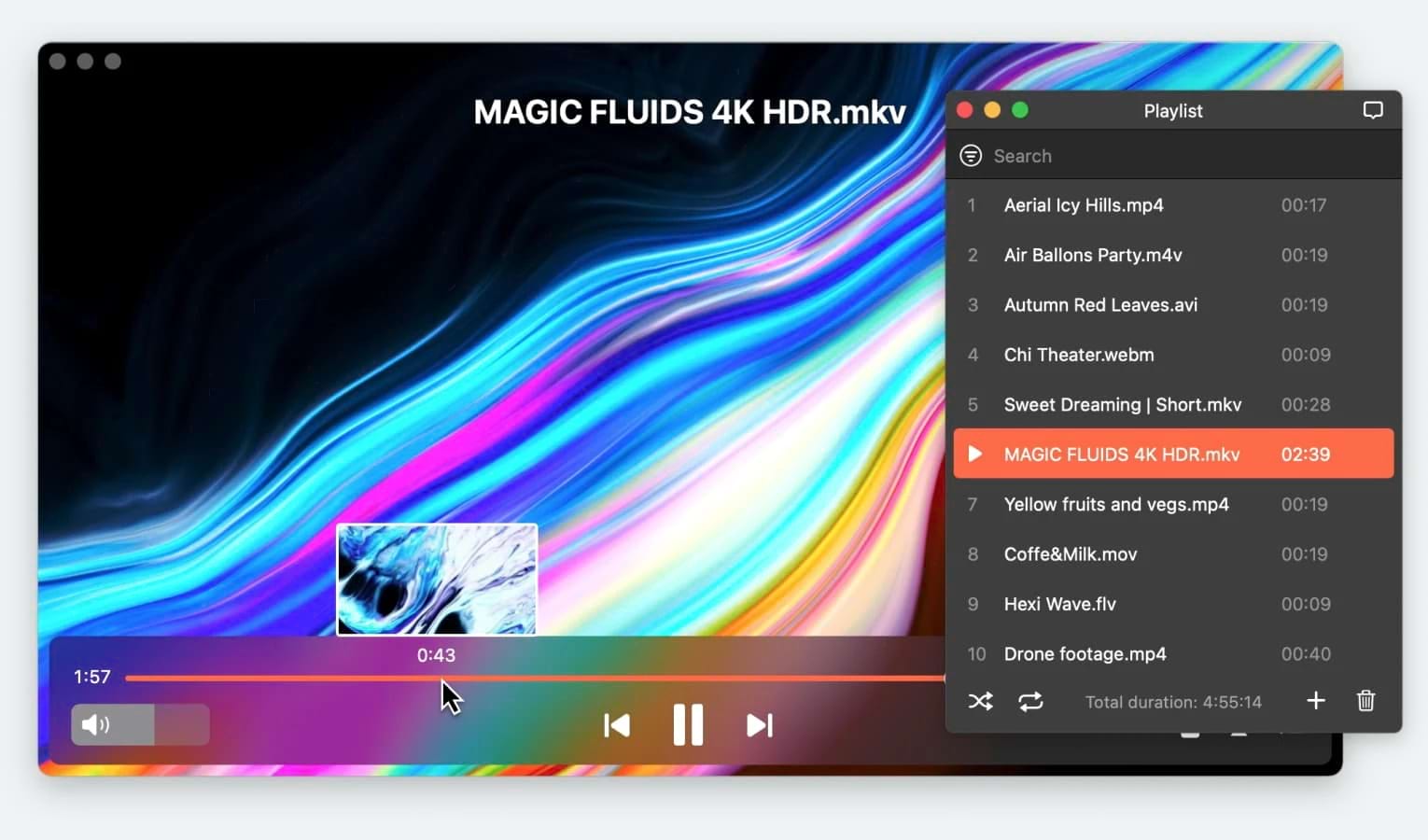
4. Click the PiP icon in the player controls, or go to View > Enter Picture-in-Picture.
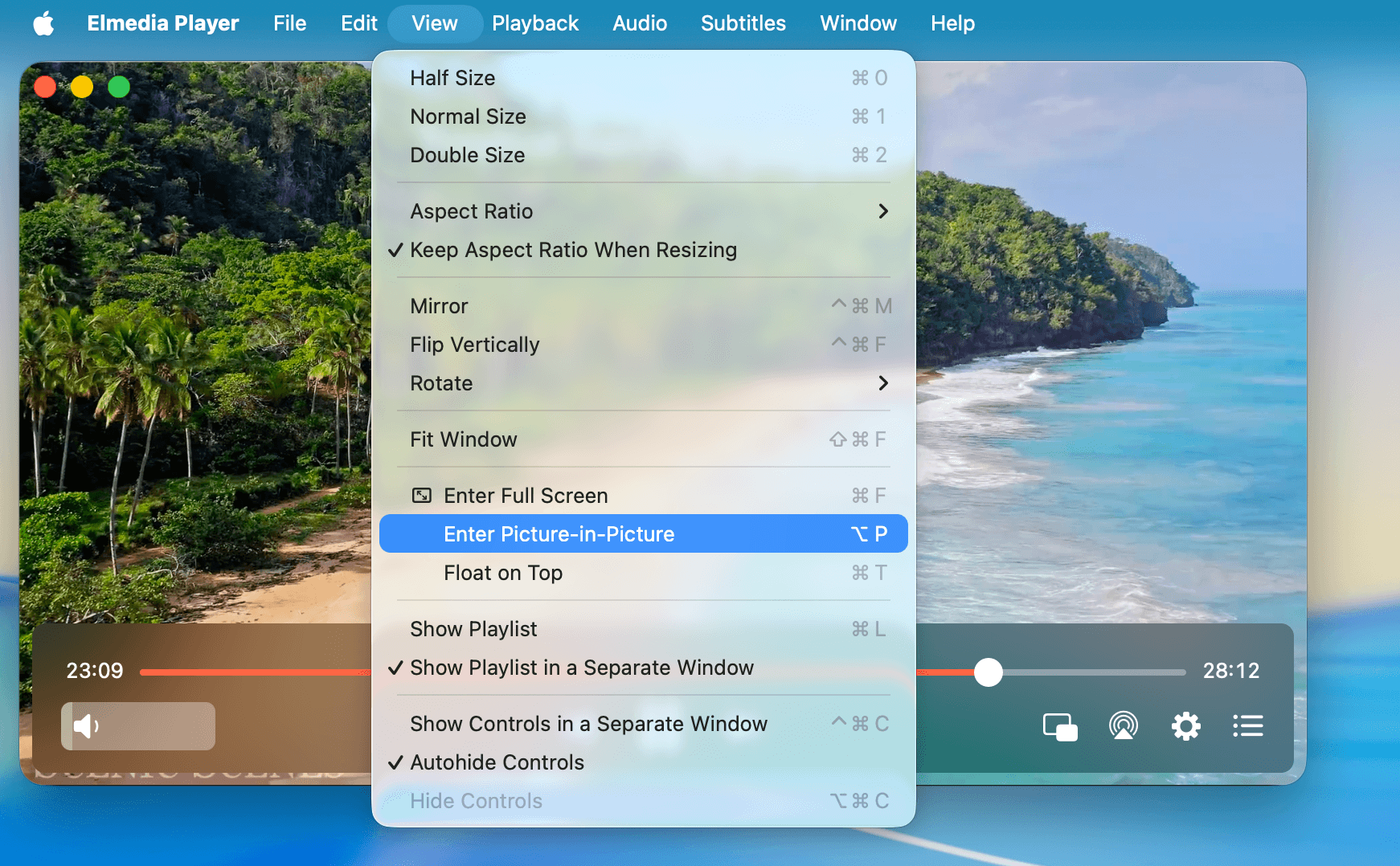
Watch local videos in Picture-in-Picture mode with Elmedia Player

5. The video will open in a floating window on your Mac.
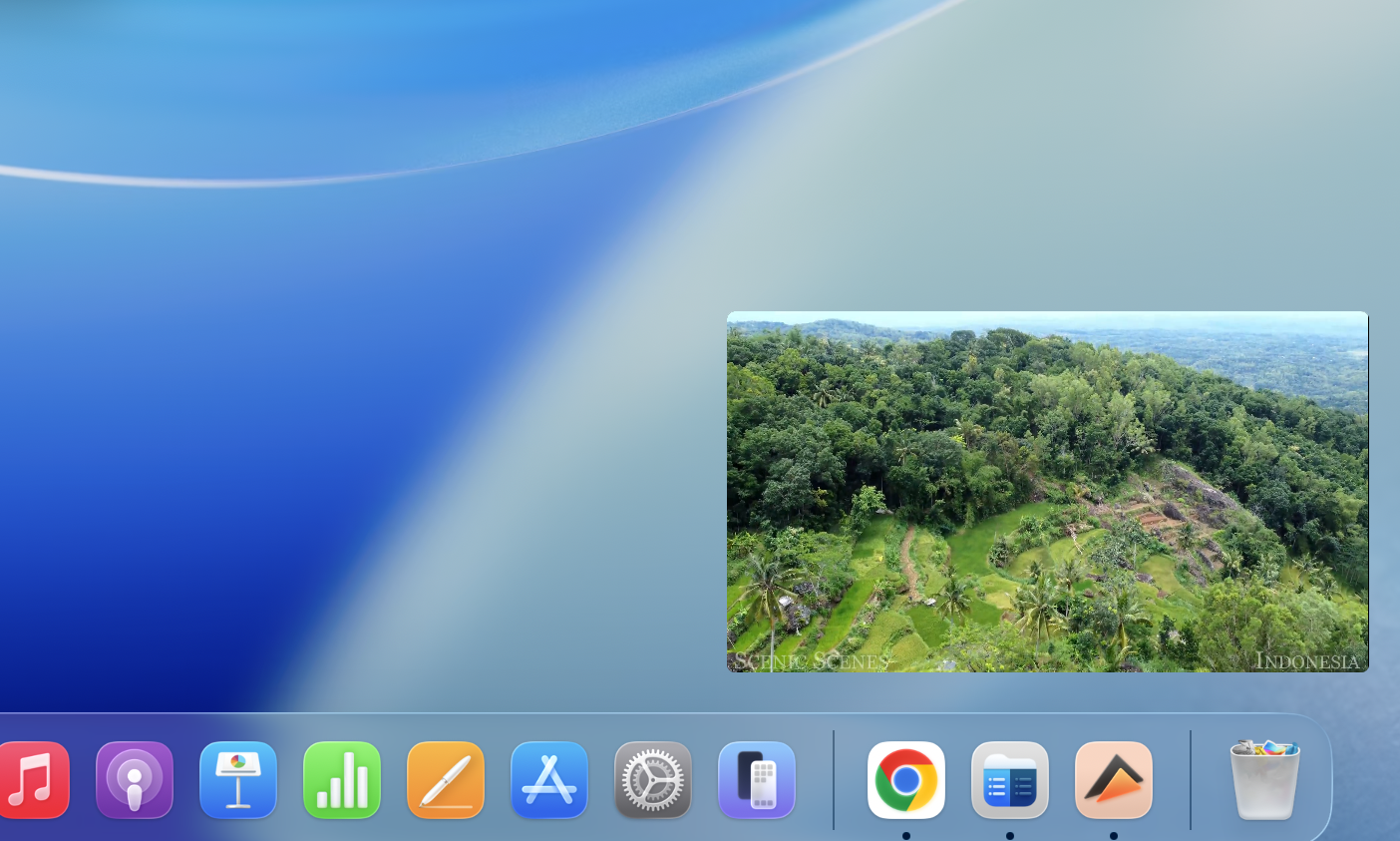
Video playing in a floating window on your Mac

How to Enable Picture-in-Picture for YouTube on Your Mac

Opening YouTube in PiP mode on a Mac takes only a few clicks. We’re using Safari as an example, but the steps are similar for other browsers:

  1. Open YouTube in Safari and play a video.
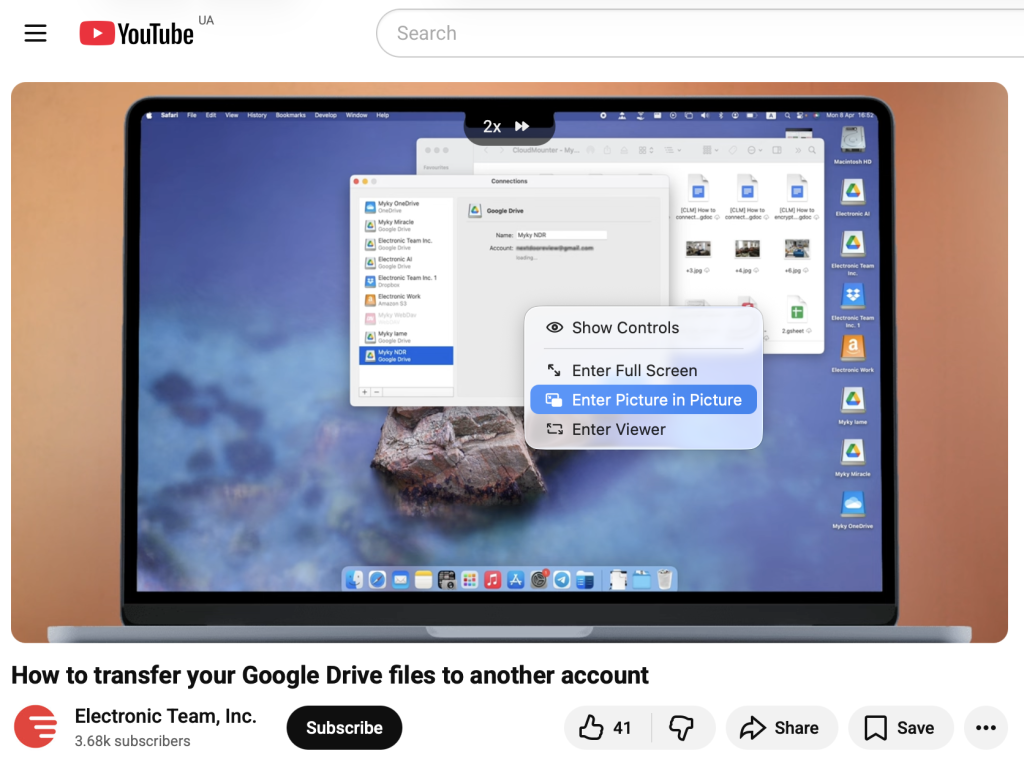
  2. Right-click the video twice to open Safari’s browser menu.
  3. Choose Enter Picture in Picture, and the video will pop out into a floating window.
Enable Picture-in-Picture for YouTube on Mac

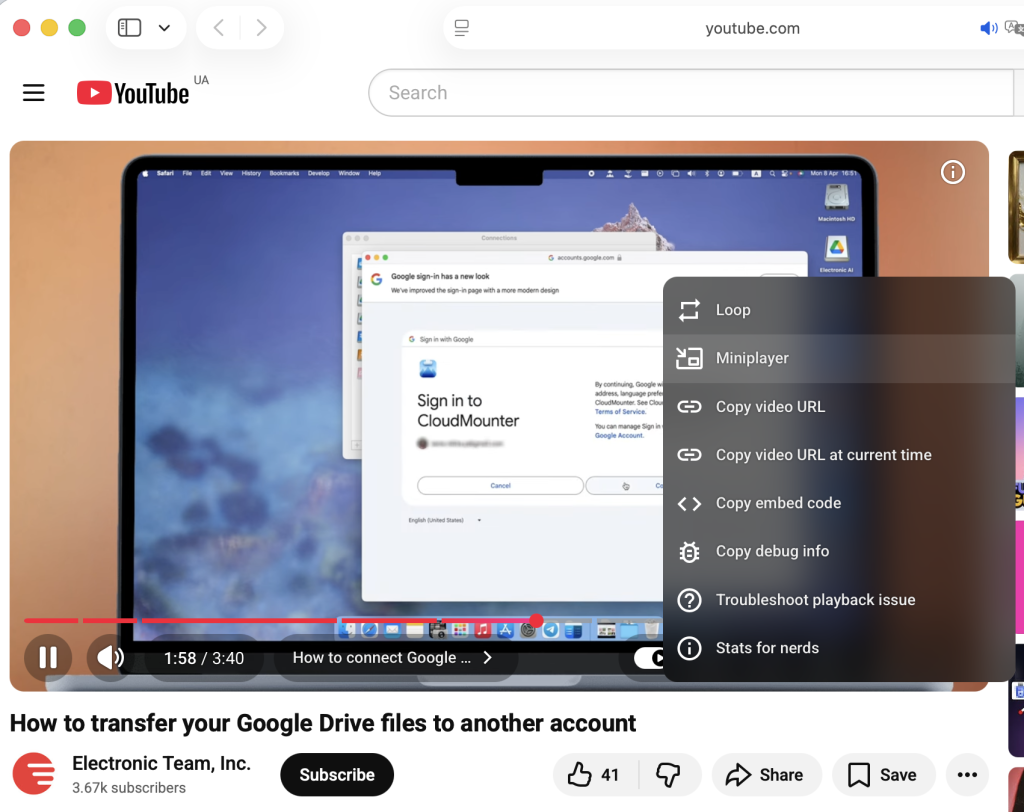
PiP vs. YouTube’s mini player: YouTube has its own mini player you can open from the video’s context menu, but playback stops when you switch to another app or tab. macOS PiP keeps playing across apps and is better for multitasking.

YouTube includes a built-in mini player that you can open from the video's context menu

How to Do Picture-in-Picture on Netflix

We recommend using Safari for Netflix PiP on Mac, since the feature doesn’t work in Chrome or Firefox, even with Google’s PiP extension.

On Safari, start playing a Netflix show or film and enable PiP from the address bar.

For offline viewing, Netflix supports PiP on iPhone, iPad, Android, and Windows, but not macOS, so streaming via Safari is your best option on a Mac. If you have videos saved from another source, you can use Elmedia Player for floating-window playback.

Conclusion

Picture-in-Picture on Mac is one of the most practical features available on Mac, and it’s easier to use than most people think.

Whether you prefer watching in Safari or Chrome or playing local files in a dedicated app like Elmedia Player, PiP on Mac keeps your video playing while you work, browse, write, or study. Once you start using it, it’s hard to go back to full-screen-only playback.