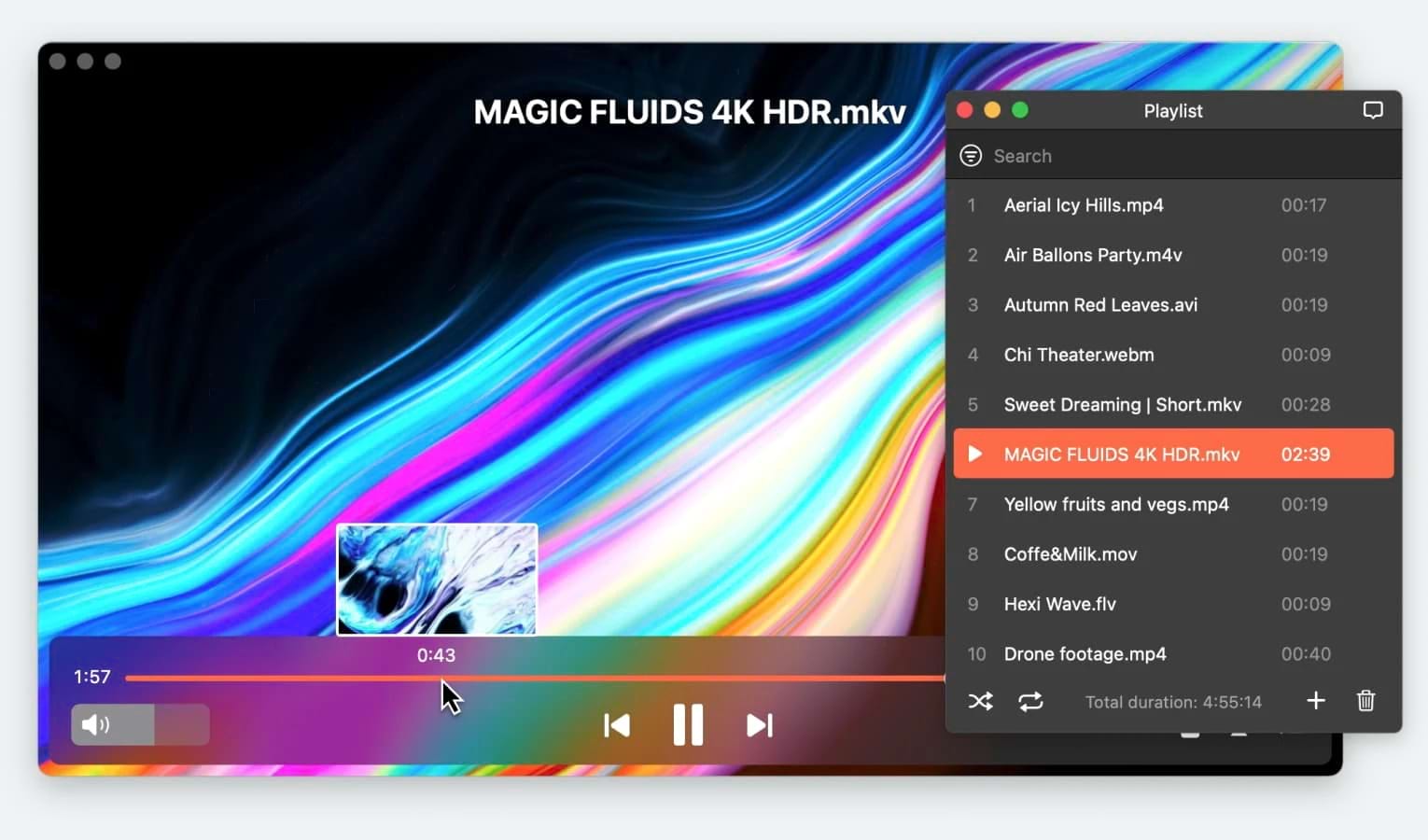
Turning your TV into an extension of your Mac’s media library can be surprisingly tricky. While macOS offers built-in features like AirPlay, they can struggle with large files, uncommon formats, or apps that don’t fully support external playback.
VLC media player offers an alternative by providing network-based streaming that allows local video files to be played on a TV. This guide explains how to use VLC to stream from Mac to TV. We’ll also introduce an alternative user-friendly option (Elmedia Player) that delivers a smoother viewing experience on your TV.
How Does VLC Stream Work?
VLC uses built-in tools to stream media over your local network. The method described in this section requires a different sequence of actions and will be quite difficult for the everyday user.
How to Set Up VLC Streaming on Mac
- The video file to be streamed.
- Profile: the codecs and output format used during streaming.
- Destination: select Stream as the destination. Once selected, the Setup Streaming… button becomes available. Click it to continue. Enter these parameters:
- Type: Select the streaming protocol, for example HTTP.
- Address: Enter your Mac’s IP address. You can find it by going to: System Settings > Network > your connection type (Wi-Fi or Ethernet) > Details > TCP/IP > IP address.
- TTL: This can also remain unchanged.
- Port: You can leave the default settings unchanged, but make sure to remember it, as it will be required.
- Then click Apply.
Once all parameters are set, click Stream. At this point, VLC becomes a server on your Mac and starts streaming the selected video over your local network.
Once streaming starts, other devices on the same Wi-Fi network, such as an Android TV or an Apple TV, can access the video by opening a network stream URL. This includes your Mac’s IP address and a specific port number. To do this, you’ll need to install VLC or another app that supports opening network streams from the App Store on tvOS or Google Play on Android TV.
If you have VLC installed on your TV, launch it and go to Browse > Open Network Stream, then enter the protocol, IP address, and port you selected earlier in the address bar (for example, http://192.168.1.123:1234). This will start playing the video from your Mac on your TV.
Keep in mind that this method differs from VLC Chromecast, which utilizes Google Cast technology. While VLC to Chromecast uses a different streaming mechanism, network streaming is an alternative method to stream to Android TV or Apple TV via network streaming.
For users who prefer a simpler approach, we’ll also take a look at Elmedia Player as an alternative option. It doesn’t require complex streaming settings, offering a user-friendly interface where streaming works clearly and intuitively in just a few clicks.
How to Cast Video from VLC to Your TV
Many modern smart TVs have Chromecast built in, and it’s also available as a separate dongle that connects to your TV’s HDMI port. When using Chromecast, your Mac acts as the controller while the TV handles playback. This helps keep your desktop free for other tasks.
Whether your TV has built-in Chromecast or you’re using a Chromecast dongle, you can cast VLC to TV without setting up manual network streams or sharing your entire screen. It’s a convenient way to watch a local video on a larger display over your existing Wi-Fi connection. You simply need to select a video file on your iMac or MacBook, choose streaming as the output method, and decide where that stream will be delivered
Follow the steps below to cast from VLC to a Chromecast-compatible TV:
1. Install VLC media player on your Mac.
2. Open the app and grant any necessary permissions in macOS. Make sure your Mac and Chromecast-compatible TV are connected to the same Wi-Fi network.
3. In VLC, click on Playback in the menu bar.
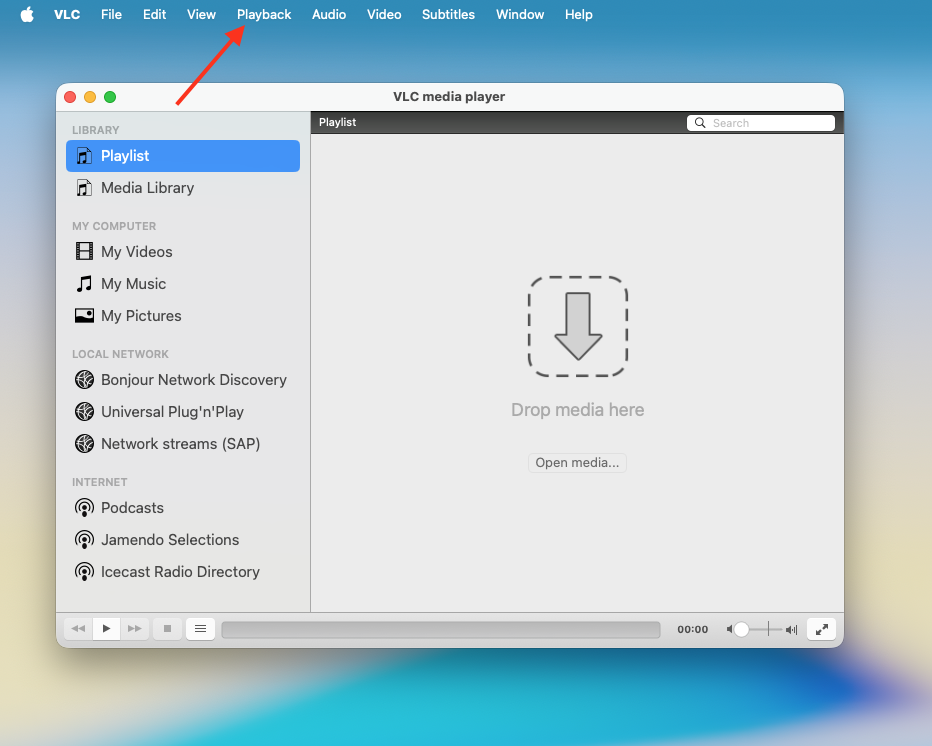
4. Select Renderer and choose your Chromecast device from the list of available options.
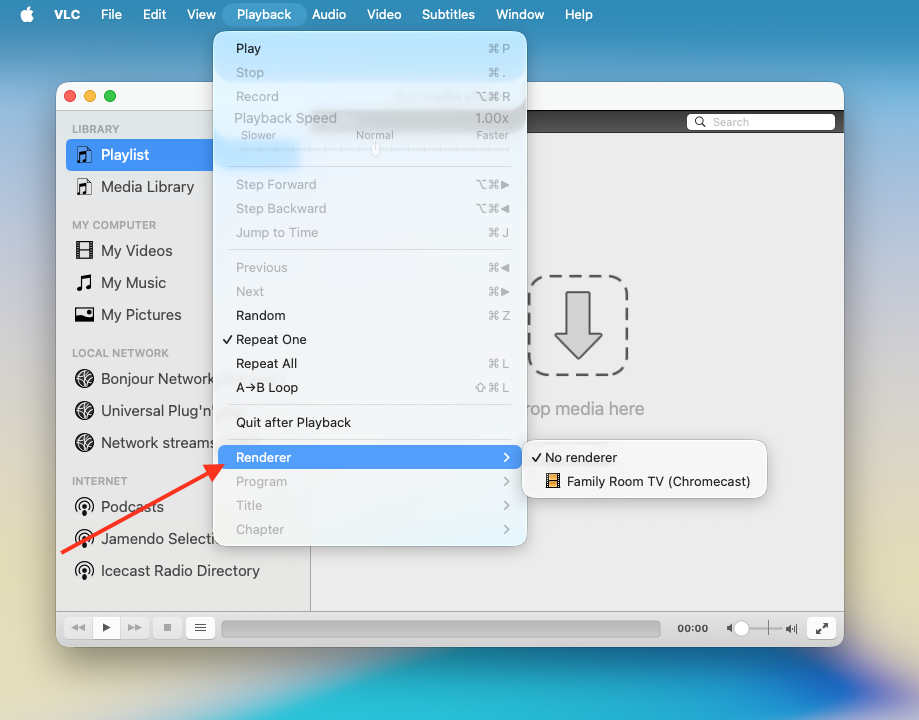
5. Drag and drop the video file you want to play into VLC or open it using the File menu.
Once selected, VLC initiates the stream on your TV, and playback should begin within seconds. Your Mac acts as the control point, allowing you to pause, resume, or rewinding while the video plays on the TV.
Although this VLC cast to Chromecast method is convenient and doesn’t require extra hardware beyond a built-in Chromecast, results can vary. Some files may not play smoothly if the format isn’t fully supported, and high-resolution videos can lead to buffering or playback interruptions.
Another Option to Stream from Mac to TV – Elmedia Player
While VLC is widely known and completely free, some users still look for alternatives for streaming local media to a TV. Therefore, we recommend Elmedia Player as one of such solutions.
It’s a Mac-optimized media player that can open and stream virtually any media format using AirPlay 2 or DLNA. It also supports Chromecast and Roku devices, so you have multiple ways to connect to your TV.
Below, we explain how Elmedia Player compares to VLC and you might prefer it when you want to stream from Mac to TV.
Setup and Ease of Use
After VLC detects a compatible device on the same Wi-Fi network, you need to access the Renderer menu to select it. These streaming settings are buried in the application menus, and if you’re not familiar with the media player’s layout, it may take some trial and error to figure out how to VLC stream to TV.
In Elmedia Player, all streaming controls are visible directly in the player interface, so you can easily switch playback from a laptop or desktop to a TV. When you open a video, you can see available devices, whether it’s an AirPlay-compatible Apple TV, a Chromecast, or a DLNA-enabled smart TV. You can select one and start playback right away.
How to Stream from Mac via Elmedia Player
You can start streaming from your Mac to a TV using Elmedia Player by following these steps:
2. Connect your Mac and TV to the same Wi-Fi network.
3. Launch the app and open the video you want to watch.
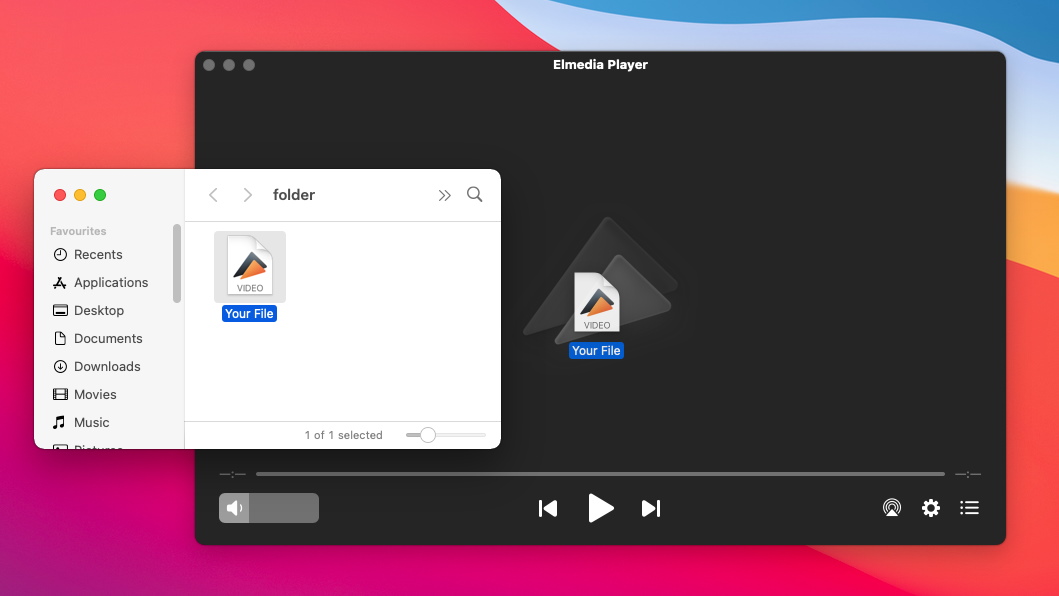
4. Click on the streaming icon at the bottom right of the player.
5. Choose your target device from the list. This could be a Smart TV, Apple TV, Chromecast, or another compatible receiver. Allow access to your TV if prompted.
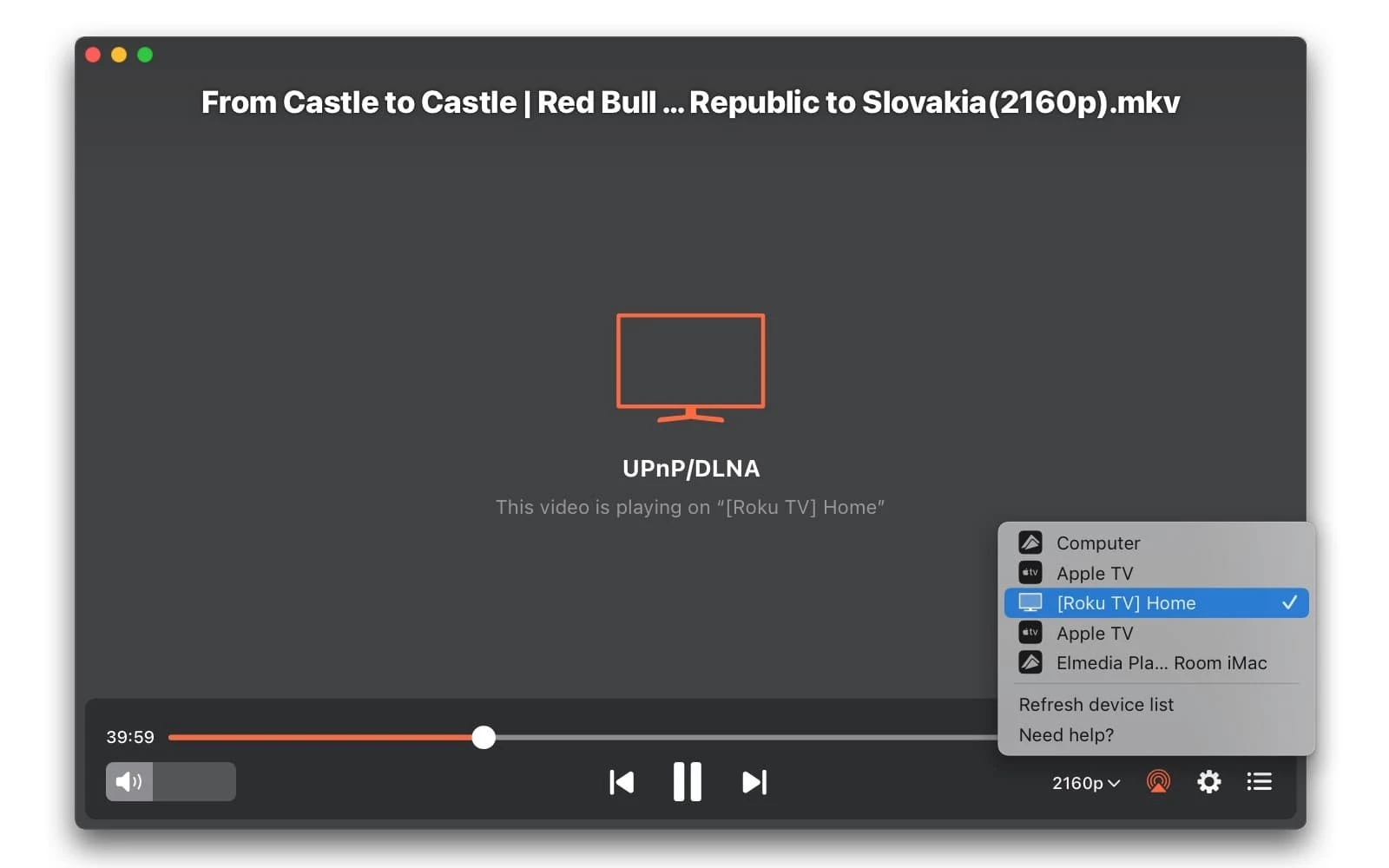
6. Start playback and enjoy the video on your TV screen.
Video Format Handling
VLC’s reputation as a universal media player comes from its ability to decode a wide range of file types locally. On your Mac, it can usually play just about anything you throw at it.
However, when you try to stream video from Mac to TV, the receiving device should support the same codecs and containers. If it doesn’t, playback can be incomplete or fail. The solution is to manually select transcoding options or convert files.
Elmedia Player automatically adapts video formats during streaming to match the capabilities of the receiving device. It then sends them to your TV or streaming device (like Chromecast) without extra configuration. This way, you’re far less likely to encounter unsupported files on a Smart TV.
Subtitles and Playback Controls
Subtitles and playback controls make it easy to follow dialogue and navigate content, especially with foreign-language movies or complex media files.
Both VLC Media Player and Elmedia Player allow you to use subtitles when you stream to Smart TV.
VLC can display embedded subtitles and load external subtitle files (such as SRT or ASS) to play along with a video. However, depending on your TV and streaming method, subtitle performance may be inconsistent. In some cases, subtitles might not appear at all unless the receiving device supports the same format or encoding.
Elmedia Player supports various external subtitle formats and makes it easy to load them alongside your video without manual setup or file conversion. If the subtitle format is not supported by the device on which the stream is running, Elmedia has an option “Burn subtitles into video”, merging the text directly into the image and sending everything as a single, compatible stream.
Playback controls are also easy to access. You won’t have to return to your Mac every time you want to skip, play/pause, fast-forward, or rewind.
DLNA Streaming
DLNA streaming is a flexible way to share media across devices because it’s widely supported and not tied to a specific brand. Whether you’re streaming to a Samsung TV, a Panasonic set, or a generic DLNA-certified receiver, the protocol allows your Mac to act as a media server while the TV browses and plays files independently.
VLC cannot stream content directly via DLNA, as it does not have built-in support for sending video to a TV. This can be a limitation if your device uses DLNA for network playback.
Elmedia Player treats DLNA streaming as a built-in feature. If a DLNA-compatible device is on your Wi-Fi network, Elmedia automatically adds it to the list of available streaming targets. You can select the device and start playback with minimal manual configuration.
Cast to Chromecast
VLC introduced Chromecast support in version 3.0 to allow users to cast directly from VLC to Chromecast devices on the same network. Upon detecting a Chromecast-compatible device, VLC lists it under the Renderer menu.
However, VLC’s Chromecast implementation isn’t as polished as native casting in apps like YouTube or Netflix. Since Chromecast supports only a limited set of codecs and container formats, VLC may need to transcode on the fly, which doesn’t always work reliably.
Elmedia works the same way but does it faster and with a more intuitive interface, showing the conversion progress before the stream even starts, which results in a user-friendly experience overall.
Elmedia Player and VLC: Comparison Table
| Feature | Elmedia Player | VLC |
| AirPlay streaming | ||
| Chromecast support | Limited/unstable | |
| DLNA streaming | ||
| Streaming interface | User-friendly | Not intuitive |
| Price | $19.99 | Free |
To Sum Up
Your experience of streaming video from a Mac to a TV depends heavily on the tools you choose. VLC has great features, and it supports Chromecast, but its streaming reliability can feel inconsistent or confusing. Setting it up can also be confusing for less technical users.
For some people, ease of use is more important than having access to every advanced option.
Elmedia Player is an alternative media player that also supports AirPlay, Chromecast, and DLNA, and includes automatic format conversion in certain cases. In situations where a more guided setup or a simpler interface is preferred, Elmedia may be a more convenient option to try alongside VLC.