The Best Way to Stream Video from Mac to DLNA-Enabled Devices
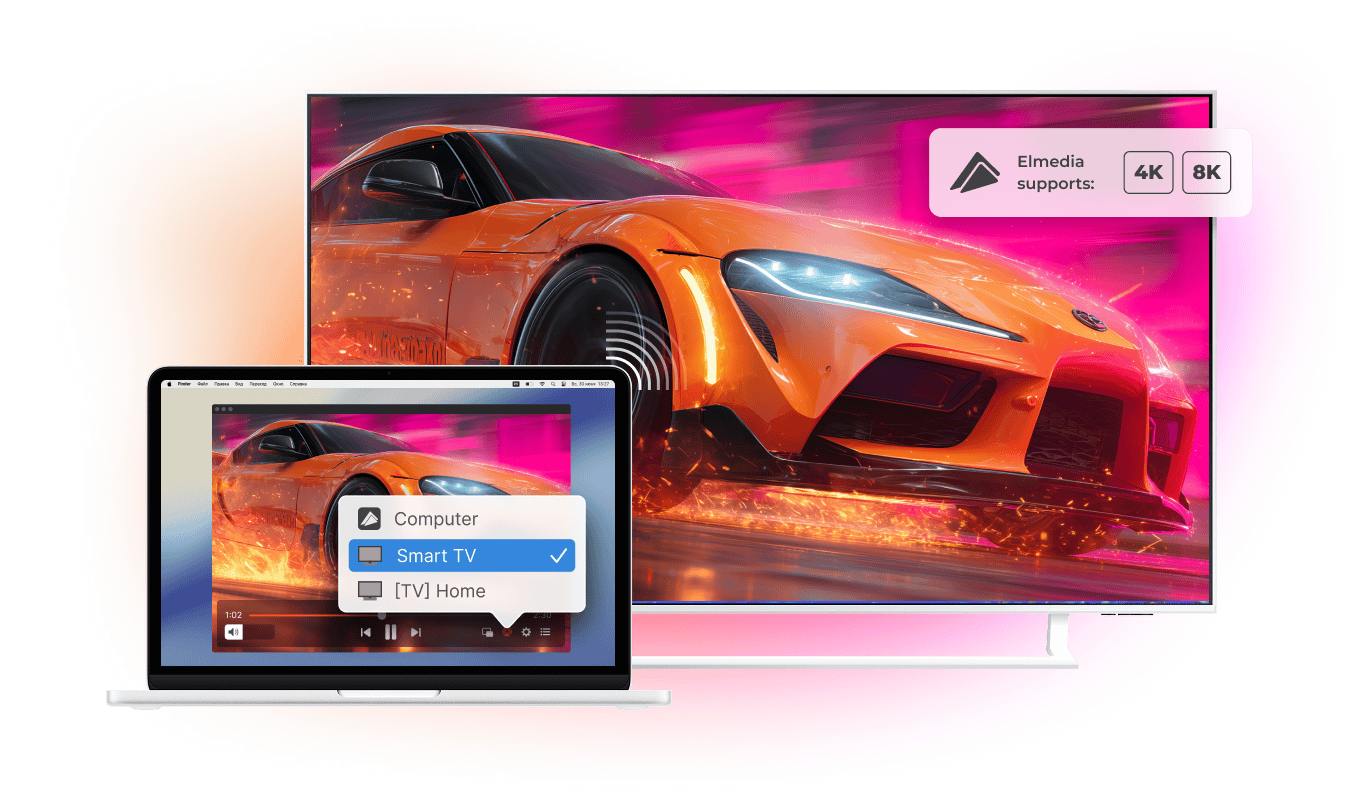
Elmedia Player acts as a built-in DLNA Media Controller, allowing you to stream movies from your Mac to a DLNA Smart TV and other compatible devices over Wi-Fi with no cables, additional hardware, or time-consuming setup. Open media in any format and enjoy smooth playback on any TV with DLNA support, without converting your files beforehand.

4.5 rank
Everything You Need for Comfortable Viewing
Elmedia Player makes watching videos on a TV screen simple and enjoyable. As a versatile DLNA player, it lets you queue multiple videos into playlists, enjoy flexible subtitle support, and play content in any format on any DLNA-supported TVs connected to your home network.
Advanced subtitle support
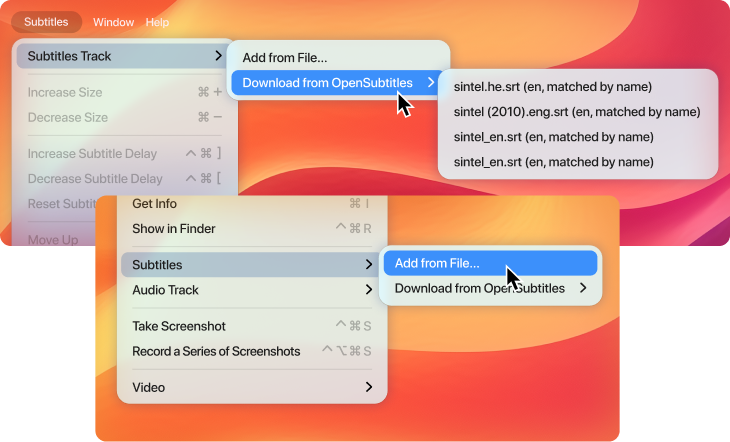
Whether your subtitles are stored locally or downloaded from OpenSubtitles, Elmedia Player can deal with both. Customize their appearance by adjusting the font, color, size to make every movie comfortable to watch on your DLNA-compatible devices.
Build a playlist once and relax
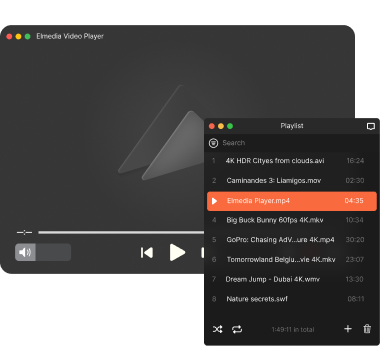
Create a playlist, press Play, and let Elmedia Player handle the rest. Your videos continue one after another, making it easy to enjoy a full movie marathon without touching your Mac.
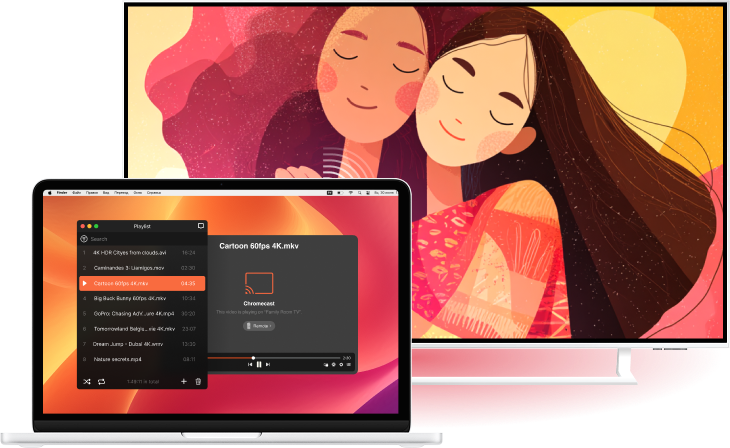
One app for every screen
Besides DLNA devices, Elmedia Player also supports Apple TV, Google Cast-enabled devices (including Chromecast and Android TV), Roku players, and AirPlay-enabled TVs. Stream video and audio throughout your home using a single app.




Elmedia Player
4.5 rank
(
Learn more
)
Powerful Media Player Beyond Streaming
Elmedia Player is more than a streaming player. It is a full-featured video player that gives you complete control over playback, audio, and picture quality. Whether you are streaming Mac to TV or watching movies locally, you get smooth playback, broad format compatibility, and an easy way to enjoy your media.
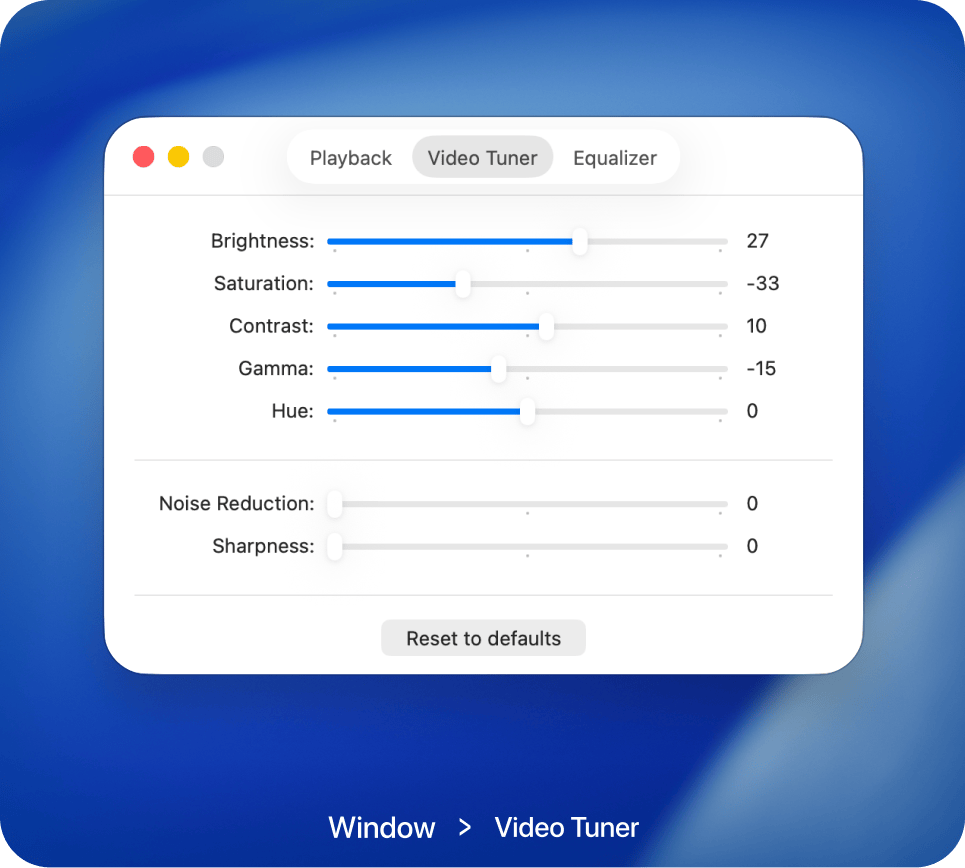
Adjust the picture your way
Use built-in video controls to fine-tune brightness, contrast, saturation, gamma, sharpness, and more. Make every movie look better before or during playback.
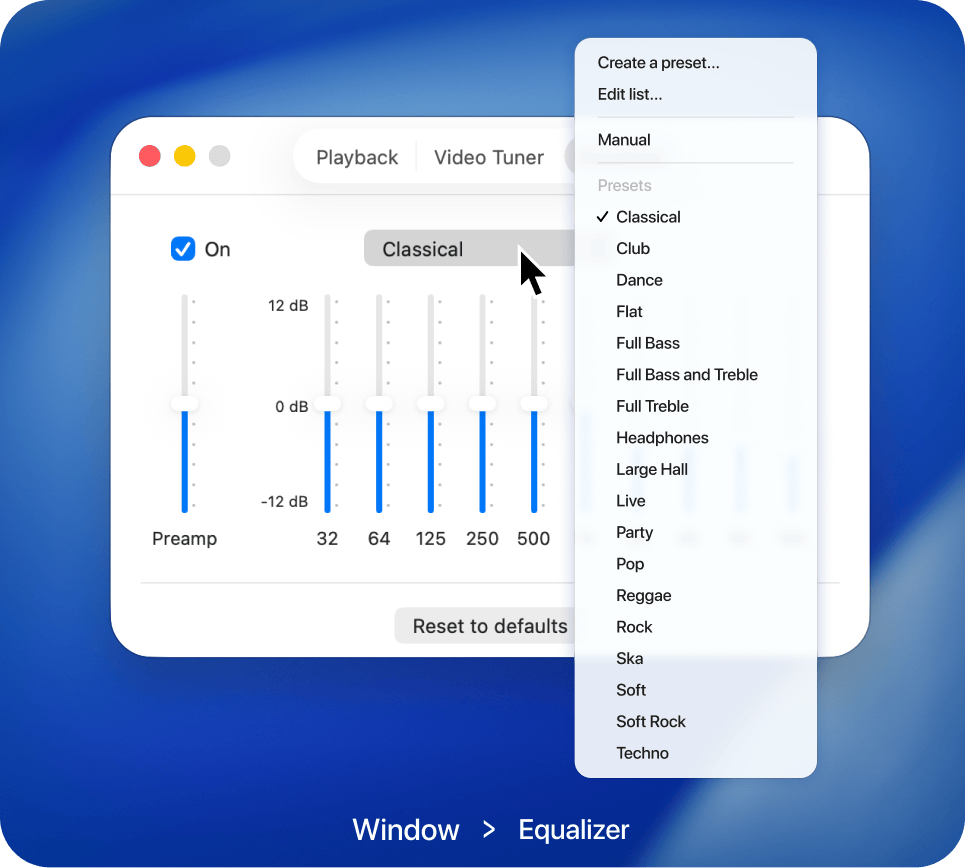
Sound that fits the moment
Shape the audio with the built-in equalizer or choose from ready-made presets. Enjoy detailed, balanced sound for every type of content.
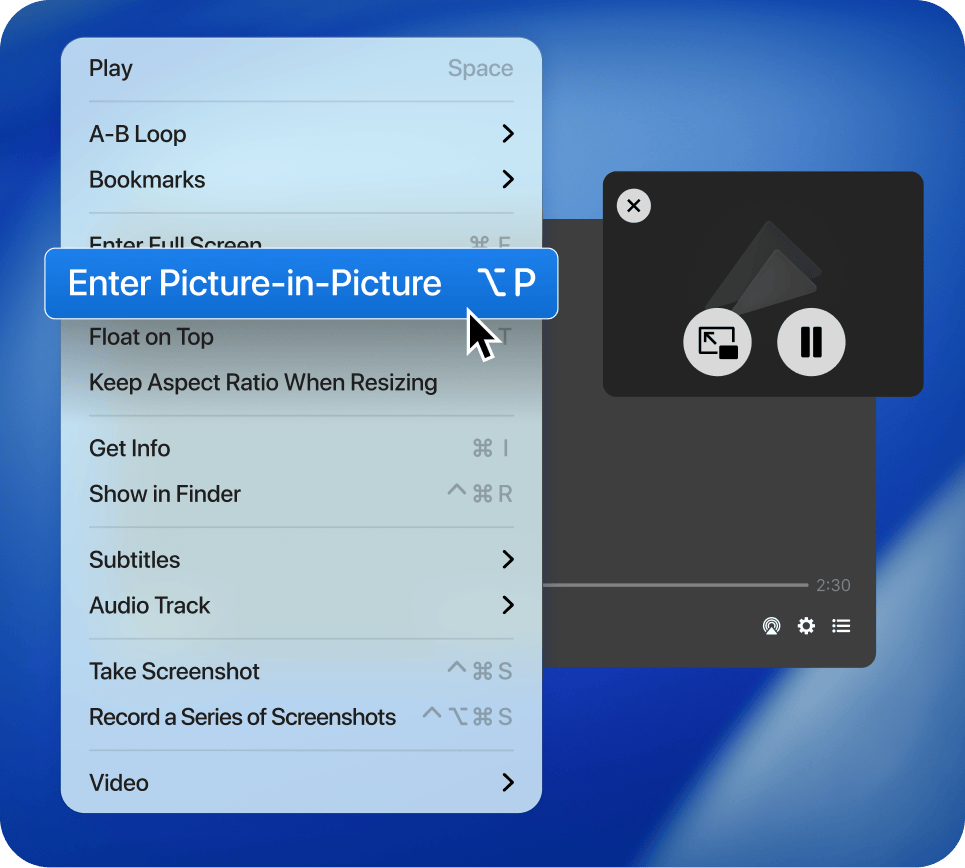
Picture-in-Picture for multitasking
Keep videos playing in a compact floating window while you browse, work, or chat. Your content stays visible without interrupting what you are doing.
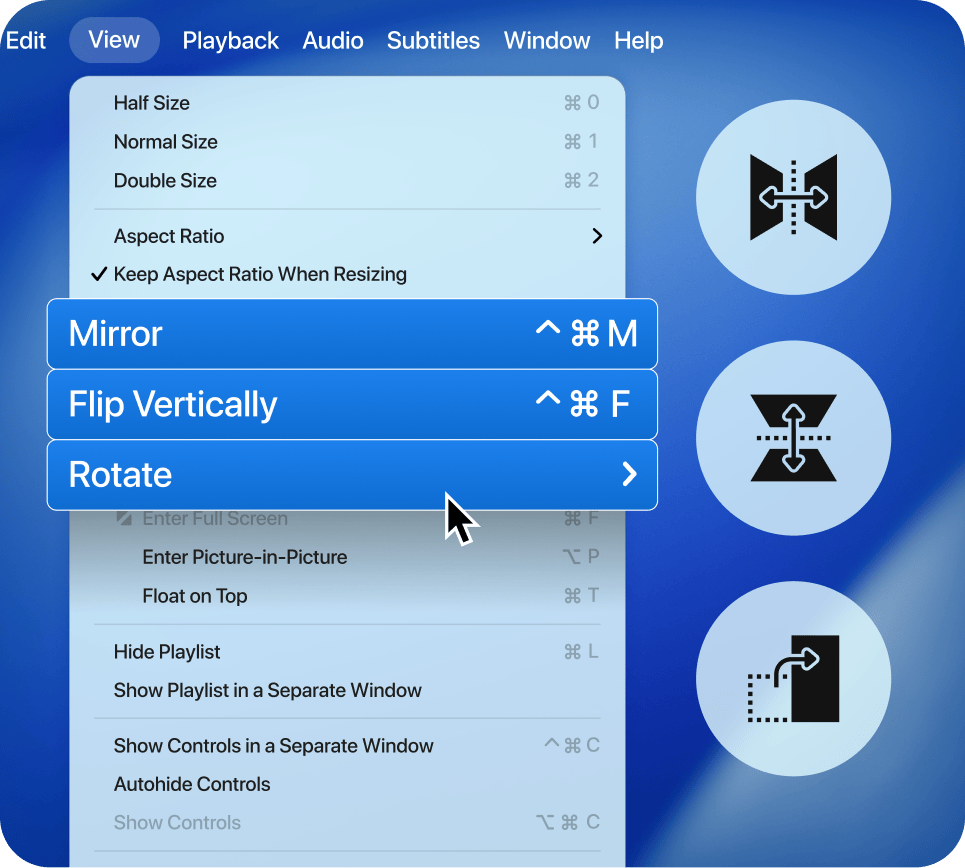
Rotate or flip videos
Fix video orientation in seconds by rotating, mirroring, or flipping the image. Every clip plays in the most comfortable view.
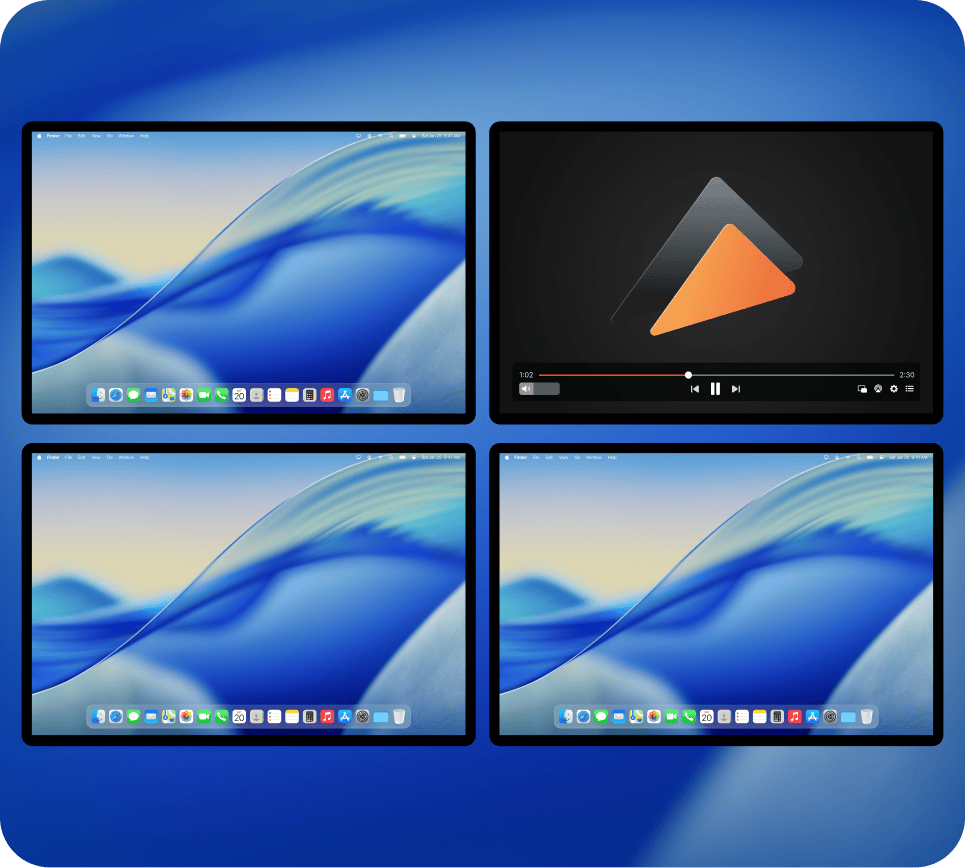
Full-screen viewing on any display
Switch to full-screen mode on any connected display and enjoy a bigger, more immersive viewing experience for movies, home videos, and presentations.
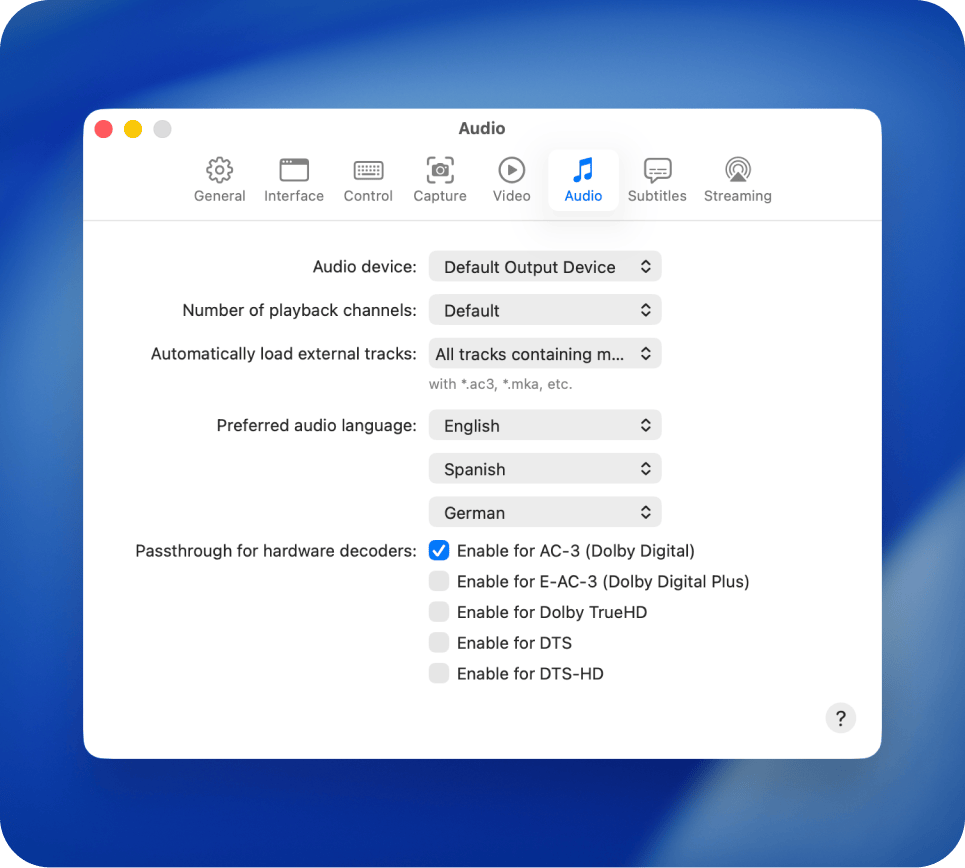
Flexible Sound Management
Select the audio track you want, route playback to your preferred output device, and benefit from Dolby Digital and DTS compatibility.
Popular video formats
FAQ
macOS doesn't include built-in DLNA streaming, so you can't stream media directly to a DLNA TV without additional software. Elmedia Player solves this by acting as a DLNA Media Controller, allowing you to stream local videos, music, and other media from your Mac to a DLNA Smart TV or other DLNA-compatible devices over Wi-Fi.
Getting started takes only a few steps:
- Install Elmedia Player on your Mac.
- Make sure your Mac and your DLNA-supported TV are connected to the same Wi-Fi network.
- Open Elmedia Player on your Mac.
- Open the video you want to stream from your Mac.
- Find and click the “Stream to” icon located in Elmedia’s bottom bar.
- From that menu, choose your DLNA device from the list.
Most Smart TVs from brands like Samsung, LG, Sony, Panasonic, Philips, and many others include DLNA support. Check your TV's specifications, user manual, or network settings for terms such as DLNA, DLNA Certified, or Digital Living Network Alliance. If your television supports DLNA and is connected to the same Wi-Fi network as your Mac, Elmedia Player should automatically detect it and make it available for streaming.
Requirements: