Roku is a streaming device that you can connect with your Mac to watch your favorite shows and movies on a TV. There are many different apps you can use for broadcasting the screen, and you can even use AirPlay with certain models.
Whether you want to look at old photos with your family or watch a movie on a bigger screen, Roku has got you covered. In this article, we’ll explain how you can cast using the right apps and provide other helpful information about mirroring your Mac to Roku.
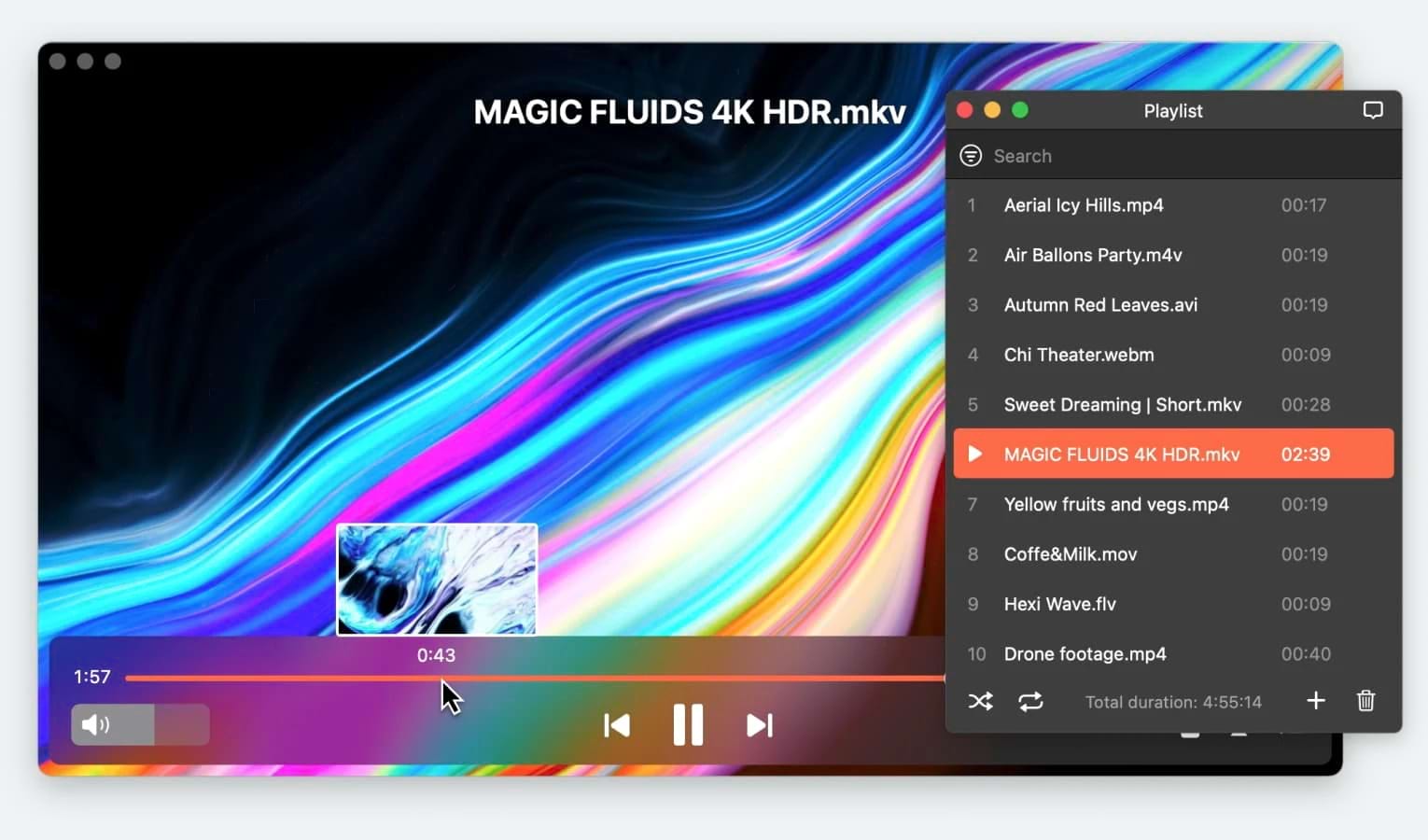
Stream Mac to Roku with Elmedia Player
One of the simplest ways to connect Mac to Roku is to use Elmedia Player. All it requires from you are a few clicks, and then you’re on your way to watching whatever you want on your device.
It’s worth mentioning here that you can’t mirror your Mac’s entire screen with Elmedia. It’ll only let you cast a single video or photo. With this feature, you get the added benefit of being able to do other things on your Mac while the video plays on your TV.
One of the best things about Elmedia is how versatile it is. It works with both iMacs and MacBooks. Elmedia can stream Mac to Apple TV and LG TV and stream Mac to Fire TV, too. There’s no need to use an HDMI cable, and with the PRO version, you can watch videos in 4K resolution.
Another great thing about the app is that it comes with many different features. You can adjust the subtitles’ speed, add external audio, and even download new subtitle files from within the app.
Pros
- Optimized for macOS.
- Stream videos to your TV via Roku without any cables
- Get access to a plethora of features.
Cons
- The free version only lets you stream for 5 minutes.
- Can’t use it for mirroring.
How to Cast Mac to Roku via Elmedia Player
1. Download Elmedia Player from its official site or the Apple App Store.
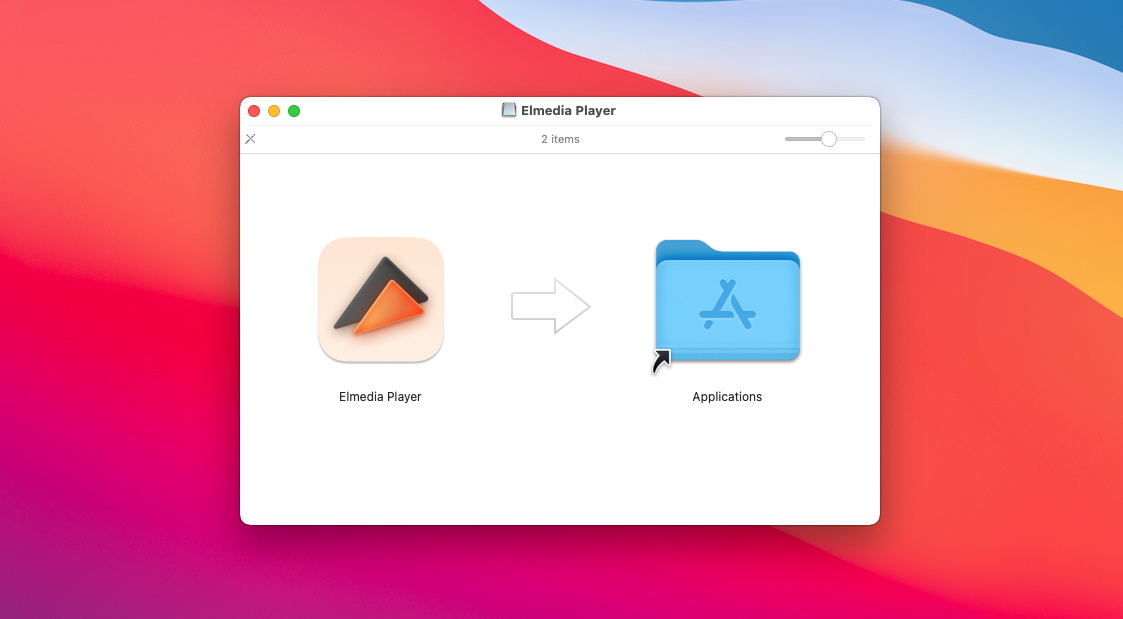
2. If you want to purchase the PRO version, you can do so from the app’s official site or directly from the App Store.
3. Turn on the TV and make sure it’s on the same Wi-Fi connection as your Mac. Make sure your Roku device is also turned on.
4. On Elmedia, play the video you want to make your Mac stream to Roku.
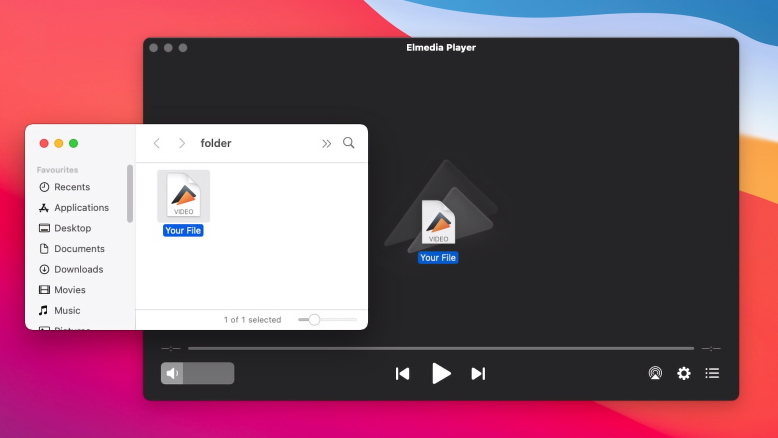
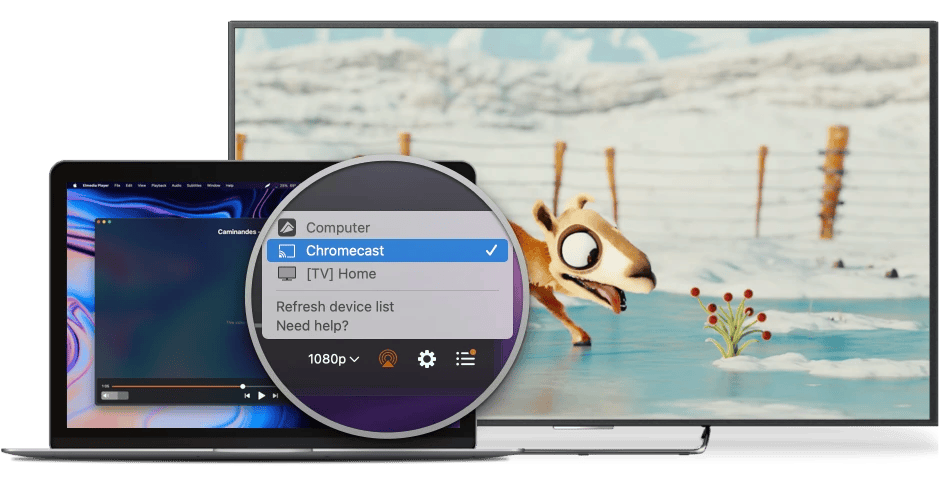
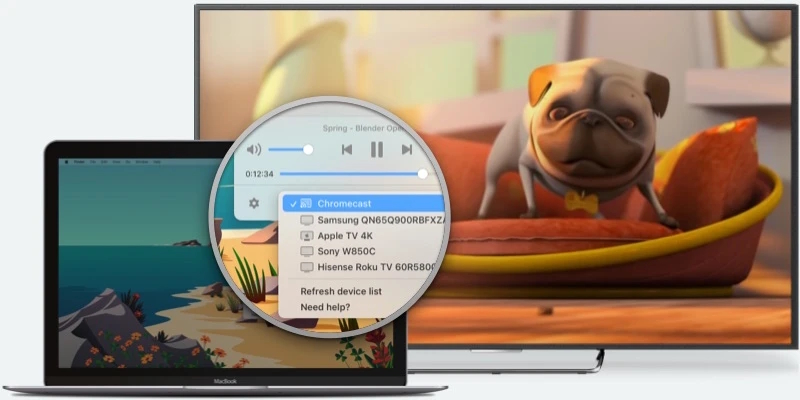
5. Click on the screen sharing icon in the bottom-right corner. A drop-down list will appear.
6. Choose your Roku from the list.
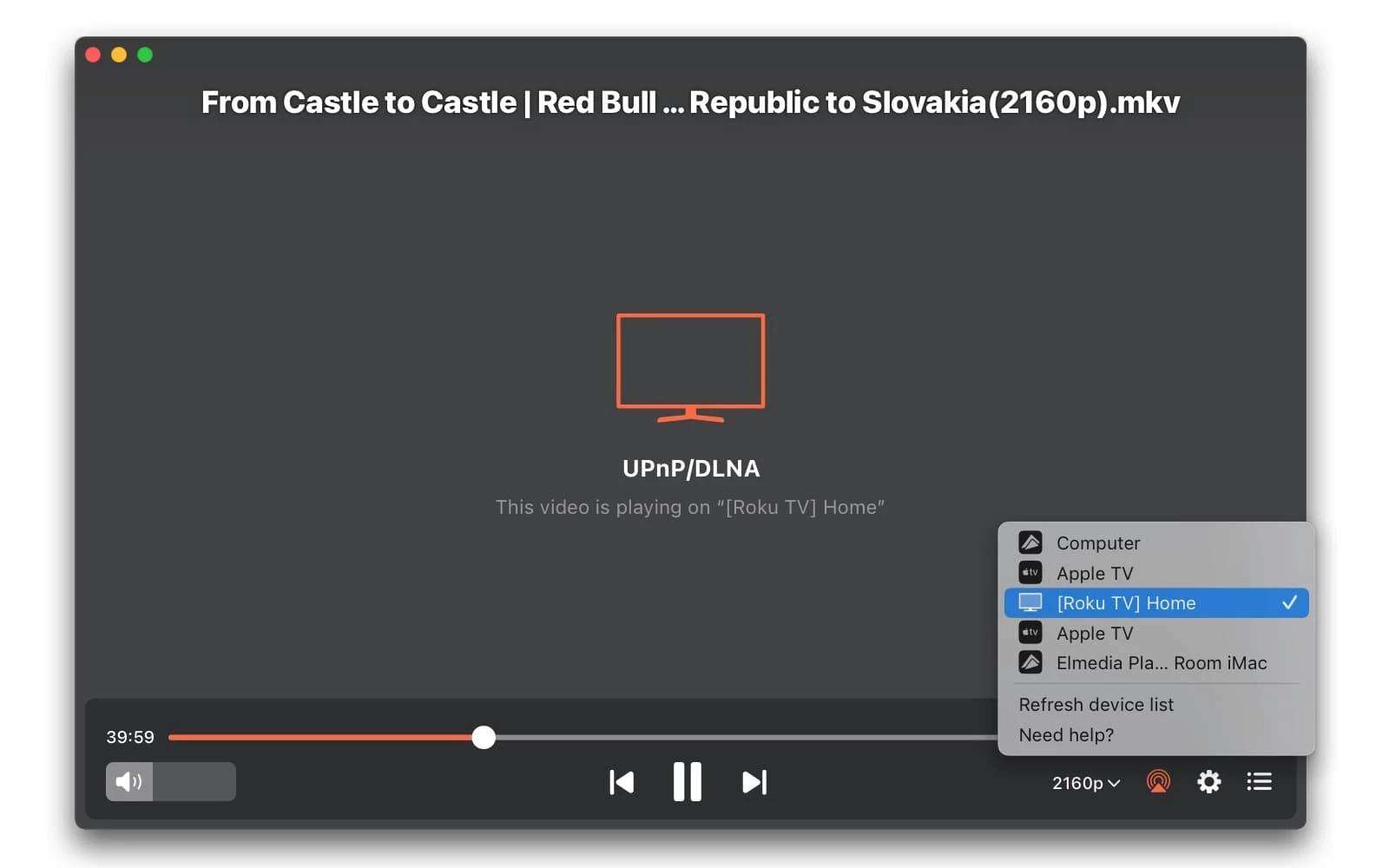
And that’s it! The video will start to display on your TV. You can now do anything on your Mac without affecting what’s playing on the bigger screen.
AirPlay Mac to Roku
Most modern Roku models support AirPlay, which means, in most cases, you won’t even need a separate app. This method is much faster since it’s Apple’s proprietary technology.
You need to ensure, if you have an AirPlay-compatible device, that you’re on Roku OS 9.4 or above. It’s not just the model and OS version of your streaming hardware that matters, but you also have to be on the correct version of whatever Apple device you’re using to be able to stream or mirror.
Video casting functionality requires macOS Mojave 10.14.15 or above. These versions support AirPlay 2 and will allow you to mirror or stream as long as you have a compatible Roku device.
To stream content via AirPlay, just play any video on your Mac and tap the AirPlay symbol. Choose your Roku device, and you’re all set!
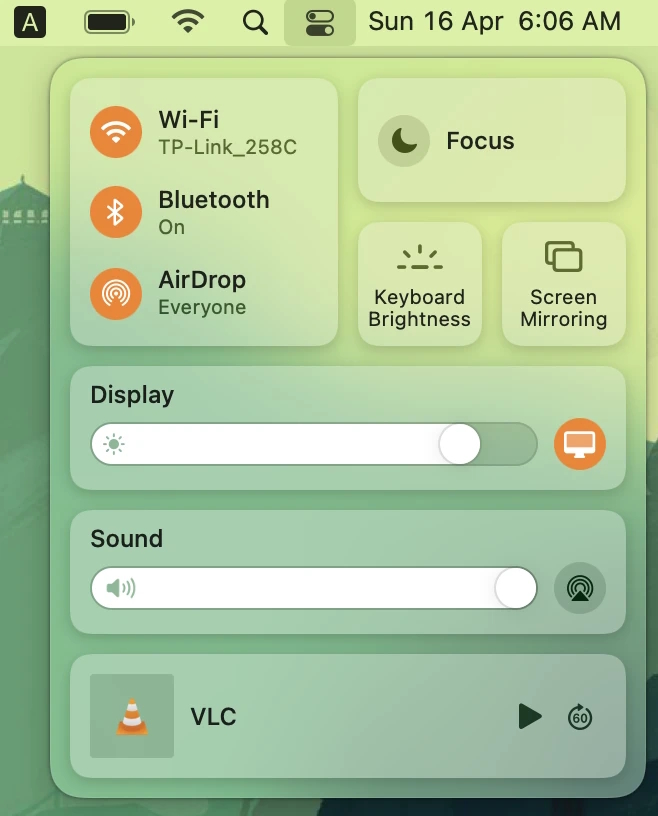
Sharing a Mac’s screen via AirPlay works the same way. Just open the Control Center on your Mac and click on Screen Mirroring. Choose your Roku, and your entire screen will be displayed on your TV.
How to AirPlay from Mac to Roku
How to Enable AirPlay on Roku
AirPlay is not always enabled by default, and your Mac may not “see” Roku as an AirPlay target unless AirPlay is turned on in Roku’s settings. Here’s how to enable it:
- Power on your Roku device and go to the home screen.
- Now go to Settings > Apple AirPlay and HomeKit.
- Select the AirPlay option and turn it on.
To make sure that you don’t have to repeat the above steps every single time, you can enable the Fast TV feature.
Here’s how to do it:
- From the home screen menu, go to Settings > System.
- Choose Power and turn on Fast TV Start or Fast Start (depending on what model you’re using).
After making sure AirPlay is enabled, follow these steps to AirPlay to Roku:
- Open any video on the computer.
- Click on the AirPlay symbol. Depending on which media player you’re using, you may have to click on the Share symbol first.
- Choose your Roku device, and the video will start playing.
List of Roku Compatible Devices
Roku has a huge selection of devices, so it can be confusing to figure out which one you should get (or which one you have if you’ve already bought one!).
A Roku TV, for example, is a smart TV that comes with built-in Roku functionality. These TVs use Roku OS, which is how they stream and mirror your media content.
Some other popular devices that you can get include Roku Streambar, Roku Streaming Stick, and Roku Premiere.
A Tip: To check what model you’re using, go to Settings > System. Select About, and you’ll be able to see details about your device, including the model name and its serial number.
Here’s a full list of Roku devices that support AirPlay 2:
| Device | Model Number |
| Roku TV™ | Axxxx, Cxxxx, CxxGB, 7xxxx |
| Roku Streambar® | 9102 |
| Roku Streaming Stick®+ | 3810 |
| Roku Streaming Stick 4K | 3820 |
| Roku Express 4K | 3940 |
| Roku Premiere | 4620, 3920 |
Mirror Mac to Roku Using JustStream
One more app that you can use to screen share videos from Mac to Roku is JustStream. You can control it from the menu bar of your Mac, making it incredibly easy to navigate through its features.
Unlike Elmedia, you can use JustStream to mirror your Mac’s screen on the TV.
With this app, you can add external subtitles and audio and change the settings to make it automatically load subtitles. You can make a playlist of your favorite videos, so you can comfortably watch them on your TV without having to change them manually.
The app has a free version that lets you stream for 20 minutes. To increase this duration, you have to upgrade to the Pro version, which costs $9.99. JustStream also requires you to download its audio driver to get sound.
Pros
- App can be used from the menu bar of your Mac.
- Watch videos in 1080p.
- Works with Roku, Chromecast, Apple TV, and more.
- Lets you mirror your Mac’s screen.
Cons
- Free version only streams videos for 20 minutes.
- Exclusive to macOS.
How to Mirror Mac to Roku with JustStream
- Download JustStream from the App Store.
- If you download from the official site, the audio driver will be automatically installed. If it’s not, you can get it from here.
- Open JustStream from the menu bar.
- The app will expand to show more options. Click on the ‘+’ symbol in the bottom-right corner.
- Open a video you want to stream.
- The video will appear under “Media Files.” Click on the three dots and choose Start streaming.
- Click on the screen sharing symbol and select your Roku from the list.
Screen Mirror Mac to Roku with AirBeamTV
AirBeamTV is an app you can use to screencast your Mac. It works with iPhone and iPad as well, and you can mirror single videos and photos to your TV.
Just like JustStream, this app also requires you to download an audio driver to be able to listen to sounds, and it works from the menu bar of your Mac.
It’s great for watching videos and looking at photos, but for gaming and productivity tasks, we’d recommend using another software since there’s a slight delay of 2-3 seconds when you screencast videos.
With that being said, AirBeamTV is a minimalistic application that sits comfortably on your Mac’s menu bar, and you can quickly use it to mirror your Mac screen to Roku.
Pros
- Easy and quick to set up.
- Can be used from the menu bar.
- The free version lets you screen mirror for as long as you want.
Cons
- Free version shows a watermark on videos you cast.
- As a media player, it doesn’t have many features to offer.
How to Mirror Mac to Roku with AirBeamTV
1. Download the app from the official site or the App Store.
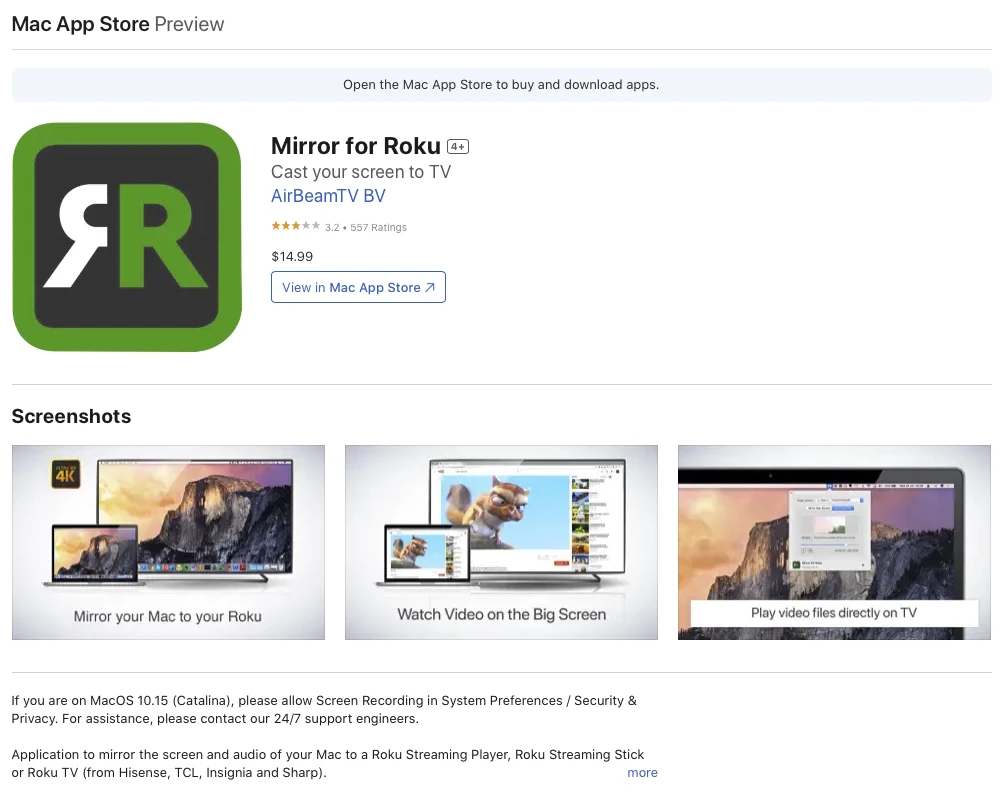
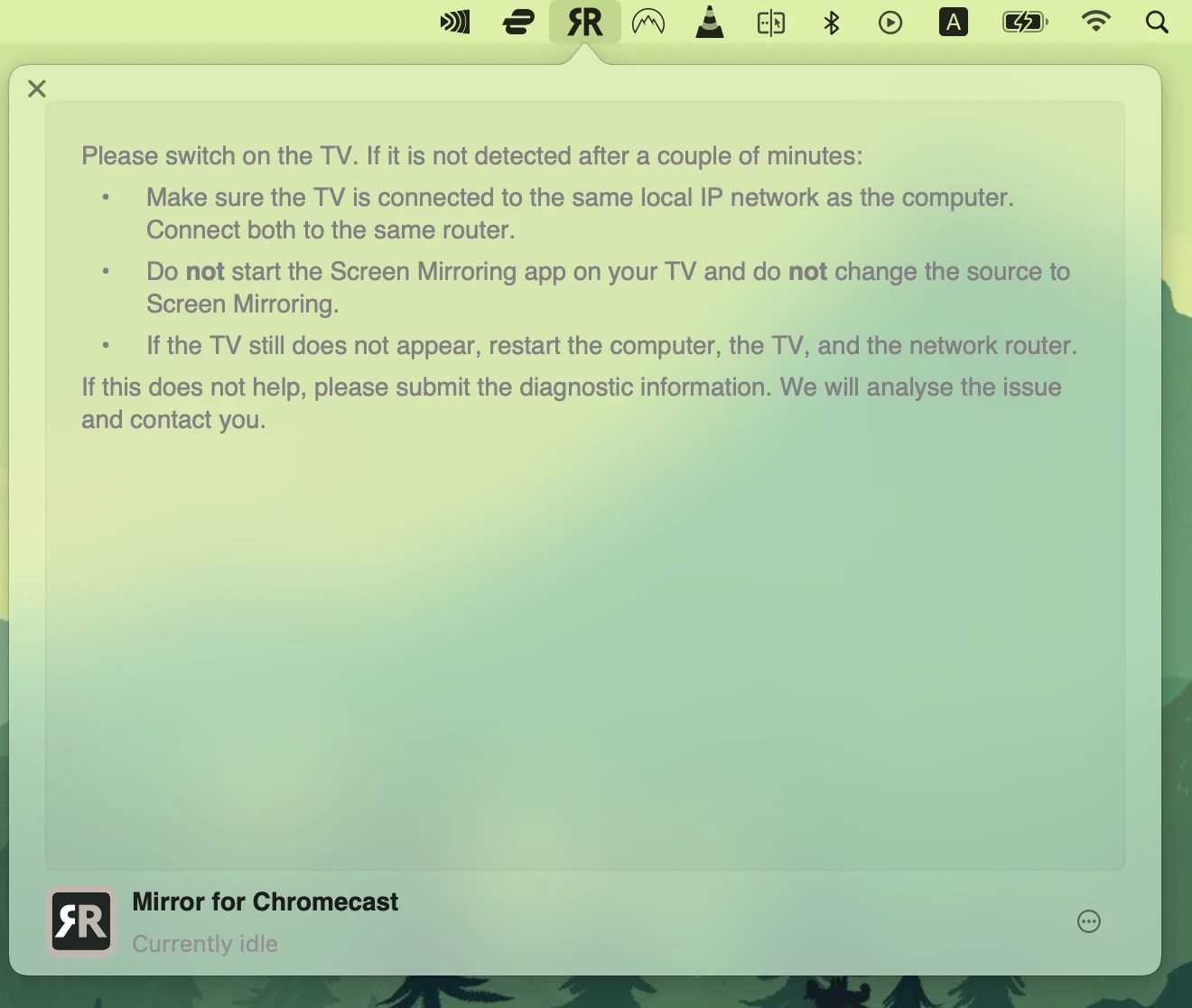
2. Click on the app in the menu bar.
3. Select your Roku in the dropdown list next to “Target device.”
4. Check the box under the Mirror Mac Screen section.
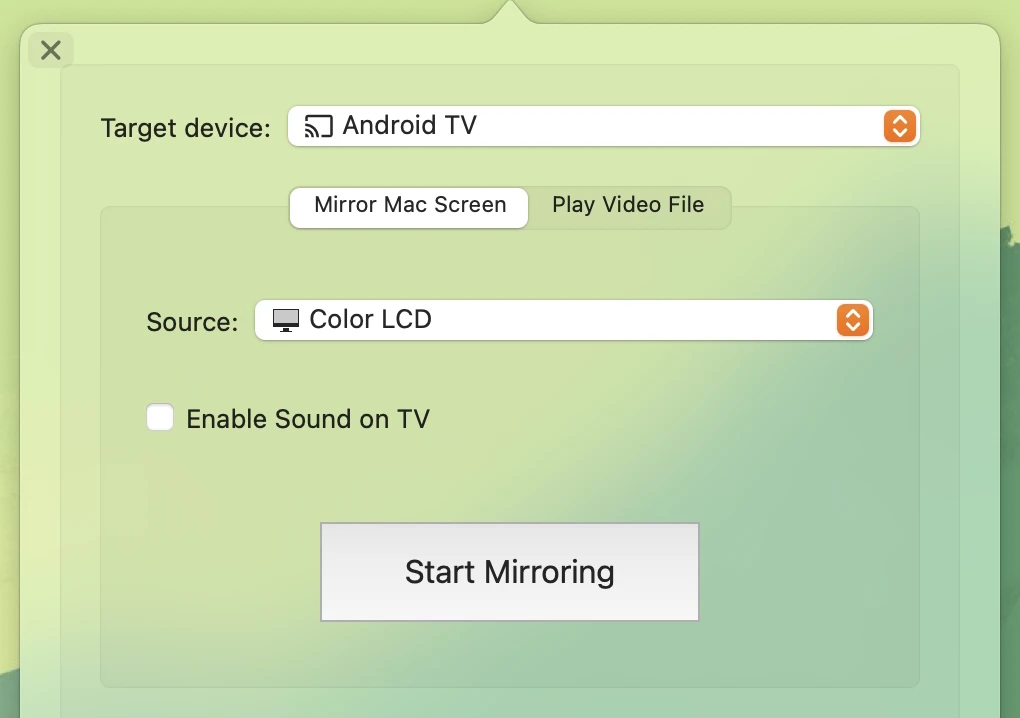
5. Click on Play Video File and choose the video you want to stream. It’ll start playing on your Roku.
Are there any free options to mirror the Mac screen on Roku?
You can connect your computer to your TV without third-party applications, which means it’s free. However, your TV should have a Mini DisplayPort adapter. If you don’t have one, you might need to purchase it and then proceed with the following settings:
- Connect an HDMI cable to the available HDMI port on your TV.
- Then connect the other end of the HDMI cable to your Mac (the adapter comes in handy at this step).
- Turn on your TV and set it to the HDMI input.
- Done! Your Macbook screen will be mirrored on your TV.
FAQ
If your Mac isn’t connecting to your Roku device, it might be because they’re not on the same Wi-Fi network. If you’re using AirPlay, you also have to make sure you’re on the right Roku OS and macOS.
You can use third-party applications to connect your MacBook to a Roku device. Elmedia Player is a solid choice as it has a clean UI, and it’s easy to set up. You can use it to stream single videos to your Roku device.
Users situation: