It goes without saying that videos usually look better on a TV screen than on a Mac. If you have a big HD TV screen but the content you want to watch is on your Mac, one of the best ways to enjoy it is by using casting or screen-sharing technology to stream the video to your TV.
In this article, we are going to show you how to screen mirror Mac to Samsung TV, so you can easily watch content on a bigger screen. Keep reading to discover the best solutions and easy steps to get it done.
AirPlay Mac to Samsung TV
AirPlay is Apple’s inbuilt solution to cast or share videos on an external display. While watching content on certain apps such as HBO and YouTube, you can hit the AirPlay button and connect to a compatible device. You can also use your Control Center to screen mirror everything that is on your Mac screen and cast Mac to Samsung TV this way.
Apple and Samsung notoriously don’t mix well, but screen mirroring Mac to Samsung TV is possible depending on your television model. The latest version of AirPlay is AirPlay 2, so you need to check if your device or TV supports this before you cast.
How to Check if Your Samsung TV is AirPlay 2 Enabled?
There is a simple way to check that your Samsung TV is AirPlay2 enabled before you connect your Mac to Samsung Smart TV models.
- Check that both your Smart TV and Mac or MacBook are connected to the same Wi-Fi network.
- Also, make sure your Mac’s operating system and TV firmware are updated to their latest versions to prevent compatibility issues and ensure you can mirror from Mac to Samsung TV.
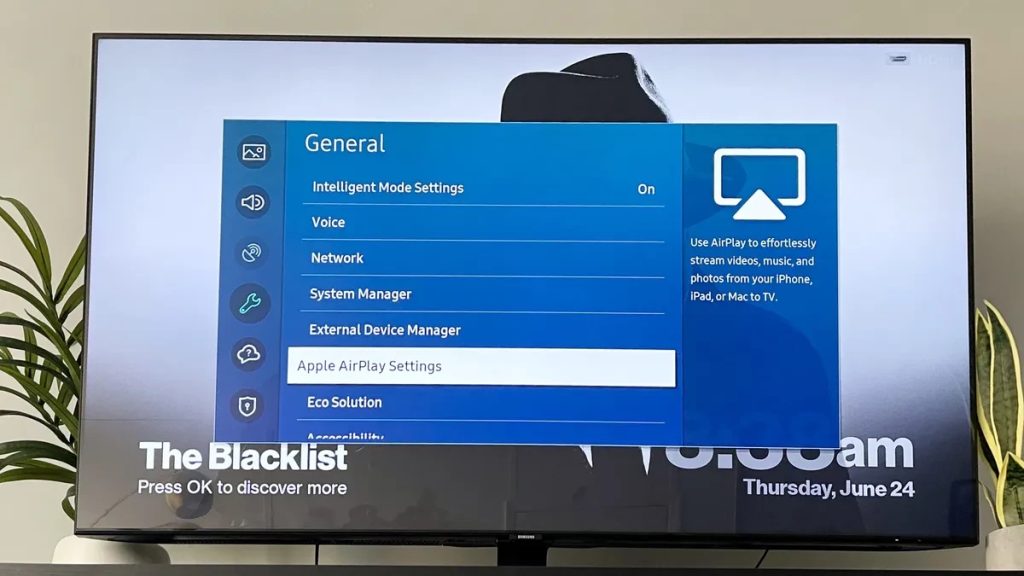
- On your TV, navigate to Settings (All Settings), and select General (on 2023 models, select Connection). If you see an option that says “Apple AirPlay Settings,” you know that the TV is compatible with AirPlay.
- You may need to click “Apple AirPlay Settings” and enable the connection.
Keep in mind that firmware updates may impact compatibility, and it is possible that Apple will upgrade its AirPlay in the future, which will also change the devices so it is capable of connecting.
How to AirPlay From Mac to Samsung TV
There are two ways to AirPlay from Mac to Samsung TV. You can either mirror your computer’s entire screen or share a specific video, image, or file. Here’s how to mirror the entire screen:
- First of all, make sure that your Mac and Smart TV you want to use AirPlay on are connected to the same Wi-Fi network.
- On your Mac, click on the Control Center icon in the menu bar.
- Click on Screen Mirroring and select your Samsung TV from the list of devices that pops up. You may be shown a code on the TV, which you’ll have to enter on your Mac to start mirroring its screen.
- To stop mirroring your Mac’s screen, open the Screen Mirroring menu in the Control Center and click on Stop Mirroring.
To cast a specific video, image, or file, here’s what you have to do:
- Open the video, image, or file you want to share.
- Click on the AirPlay icon.
- Select your Smart TV from the list of devices. Enter the code displayed on your TV, and you’ll be able to AirPlay the file while still using your Mac.
List of AirPlay 2 Compatible Samsung TV Models
Models of AirPlay 2 compatible Samsung TVs include:
- 2023 Neo QLED 8K and Neo QLED 4K TVs
- 2022 and 2023 Frame, OLED, and QLED TVs
- All 2022 4K QLED TVs
- 2021 8K and 4K QLED TVs
- 2021 Crystal UHD TVs
- And some other models…
Check out this list on Samsung’s website for a full list of options if you are looking into streaming to Samsung TV from Mac.
If AirPlay isn't working for streaming from Mac to Samsung TV
There are some potential issues that you might run into when you are mirroring Mac on your TV’s display. If you are having issues with your screencast, check the following:
- Ensure both devices are connected to your Wi-Fi. They must be on the same network in order to work and display your favorite videos and shows. The internet connection should also be live and working as expected.
- Check that you are running the latest software and firmware. Run a quick check for updates on both devices to see if this could potentially be causing problems.
- Restart the devices if you need to. This can sometimes reset the connection and fix your problems.
- If you experience audio issues, check that the volume has been turned up, and then ensure that you have enabled “Audio Mirroring” from the TV’s sound settings menu. This may be required for your video to also stream audio to the device.
- If you aren’t getting a code to pair your Samsung TV with your Mac, you may need to ensure AirPlay is enabled on your TV. To do this, go to the TV’s settings menu, and you will see an option for AirPlay. Make sure this is enabled.
If AirPlay still isn’t working, we recommend trying alternative solutions. We’ll walk you through the best options below.
Connect Your Mac to Samsung TV Wirelessly with Third-Party Apps
Stream from Samsung TV from Mac with Elmedia Player
Elmedia Player offers excellent versatility for streaming to Samsung Smart TVs, supporting various protocols and working seamlessly with DLNA-certified models. Since Samsung TV acts as a DLNA receiver, you can connect your MacBook and stream any local content. And it’s got a whole lot more to offer. Elmedia Player is also compatible with Roku, Chromecast, and LG. It gives you the opportunity to customize your audio and video settings when you stream from Mac to Apple TV, letting you pick the resolution depending on preferences. It also lets you set your audio settings for the ideal experience.
The player also offers a variety of different subtitle options, making it easy to set them up when viewing any foreign language content. And it can handle files in a huge range of different formats, guaranteeing that you’ll be able to play anything in your library.
Pros
- Can handle any conceivable media format
- Audio and video streaming
- Adjusting the resolution to control the display
Cons
- The streaming feature is only available in the paid version
How to Stream From Mac to Samsung Smart TV via Elmedia Player
1. Turn on your Samsung Smart TV and ensure it is connected to your Wi-Fi.
2. Download the Elmedia Player installer from the homepage, and install it on your macOS.
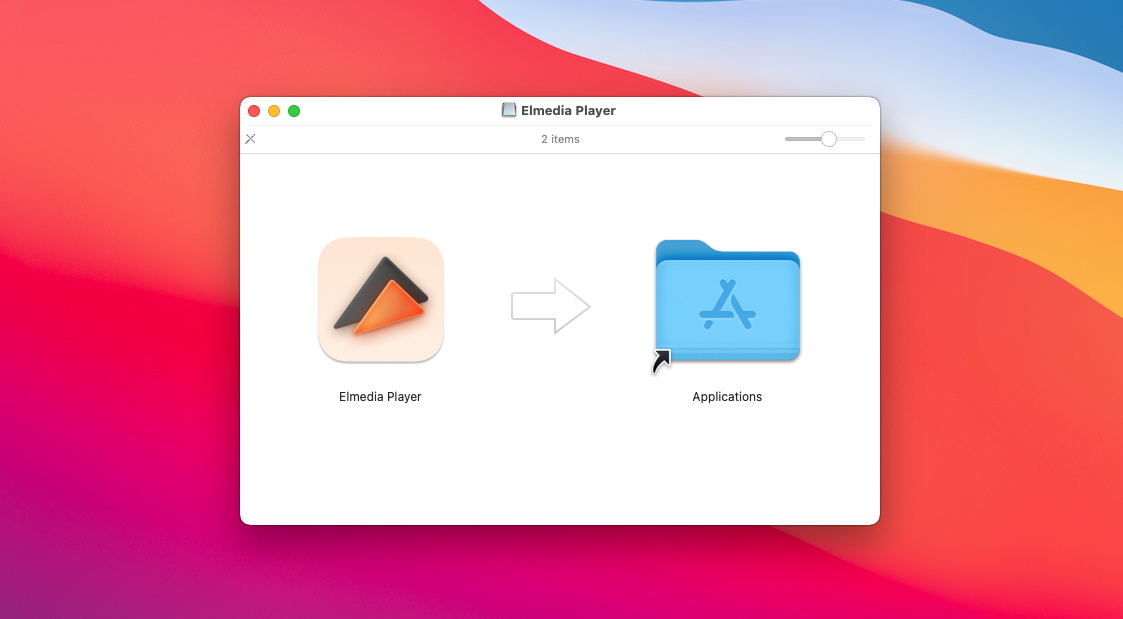
3. Activate the PRO version.
4. Navigate to the file you want to play on your Mac hard drive.
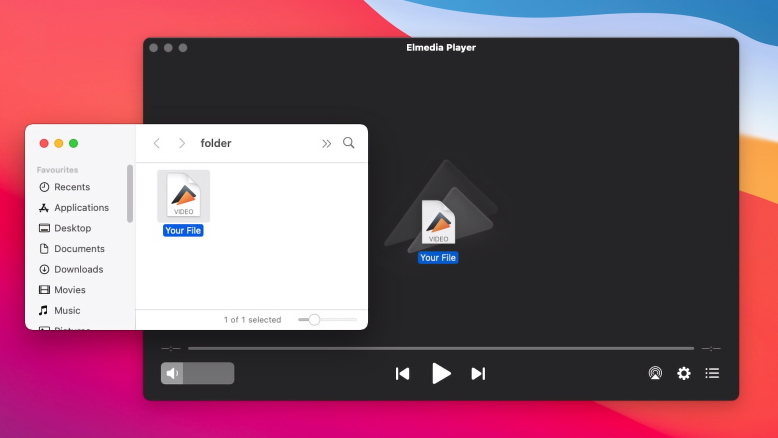
5. Open the file in the Elmedia Player app.
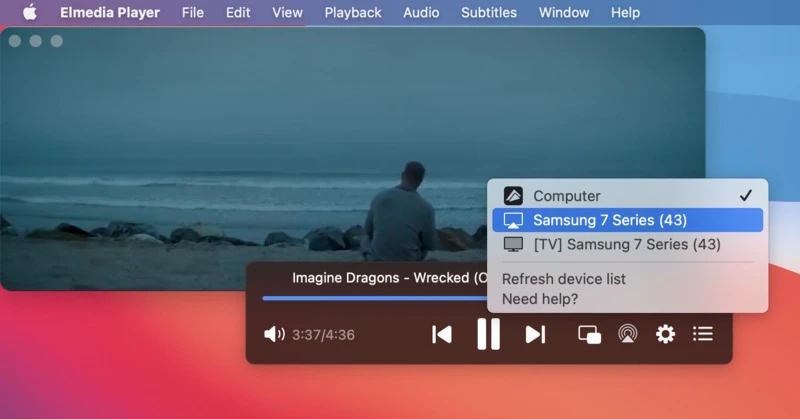
6. Hit the streaming icon in the Elmedia control panel, and select your smart TV.
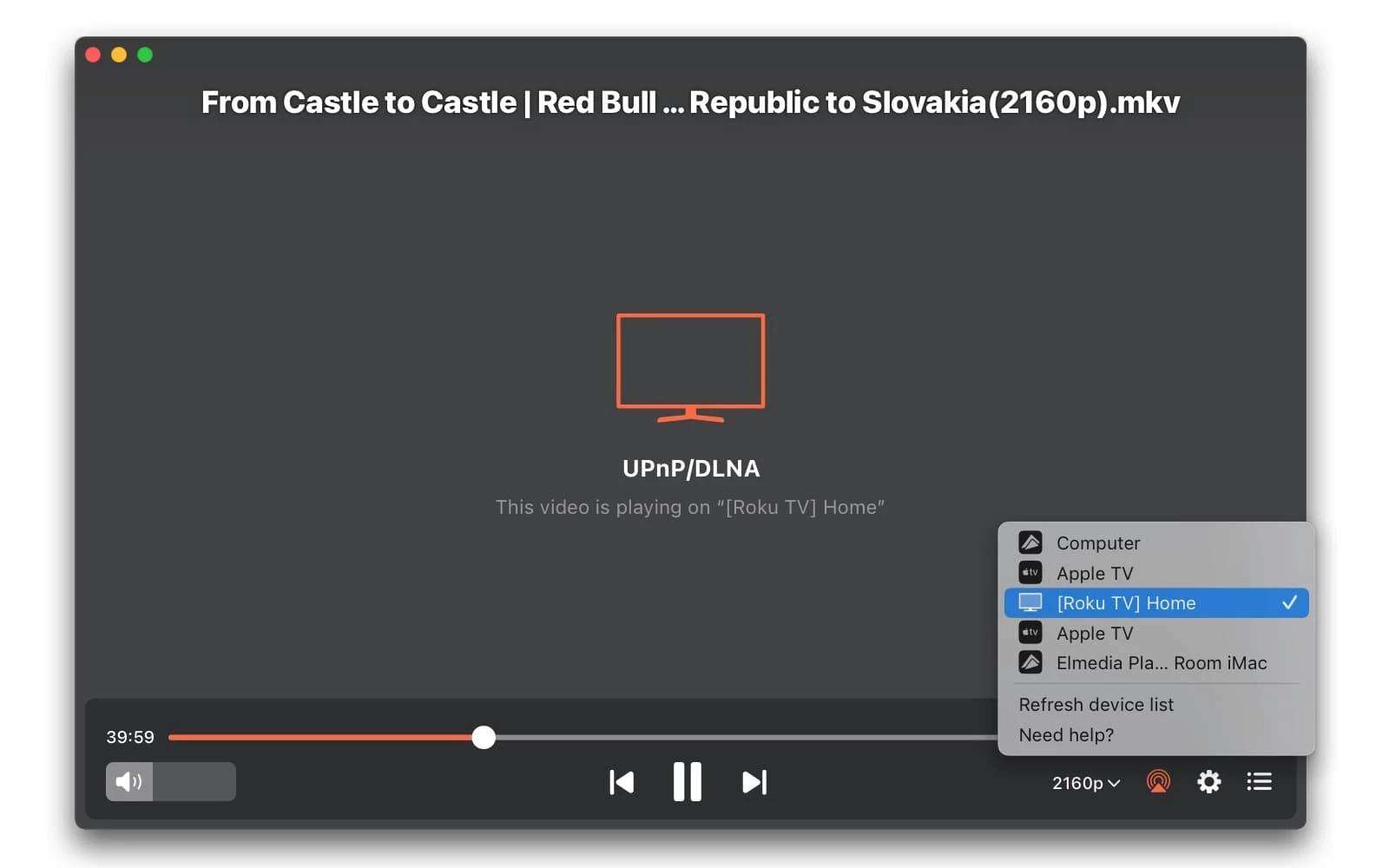
7. Now just sit back and watch your content.
Screen Mirroring Mac to Samsung TV with JustStream App
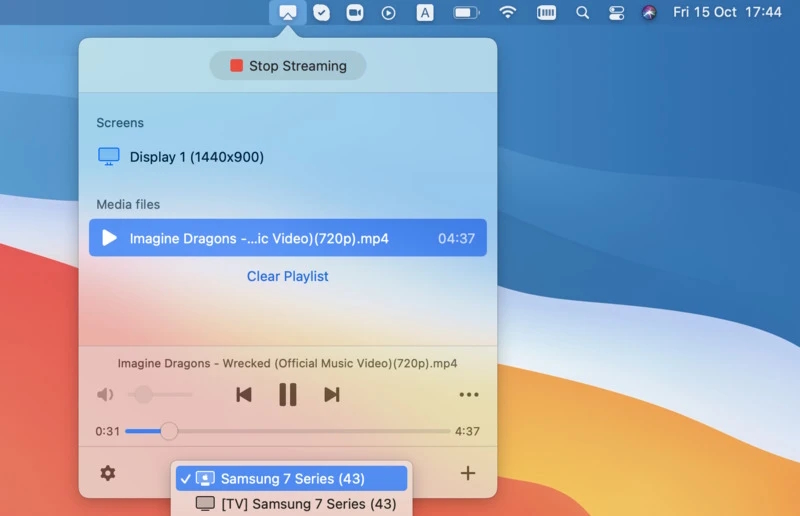
JustStream is another top app that lets you share a Mac screen with Samsung TV in seconds. It also works with a number of other devices and hardware. You can set it to play entire playlists, and it also offers plenty of options when it comes to customizing what you want your playback to be like. Last but not least, it offers complete subtitle support. Here’s how you can use JustStream to stream video from Mac to Samsung Smart TV.
Pros
- Mirrors sound and video
- Mirrors your desktop
- Easy controls within the menu bar
- Compatible with variety streaming devices
Cons
- The free version of the app allows only 20 minutes of streaming
- Might consume a lot of your Mac's CPU power
How to Mirror Mac to Samsung TV via JustStream
- Download and install JustStream from the App Store.
- Ensure that your macOS and your Smart TV are both connected to the same wireless network.
- Open JustStream by clicking its icon from Applications or the Menu Bar.
- When prompted, choose which monitor you wish to mirror.
- Select the network device that will be used to mirror the Mac (the Samsung TV). JustStream will start streaming the file to your chosen device.
- Start your mirroring using the “Start Mirroring” button on the app.
- When you’re done, click “Stop Streaming.”
Screen Share Mac to Samsung TV with AirBeam TV Application
AirBeam is a basic tool for mirroring from Mac to Samsung. It offers compatibility with a variety of other hardware and devices and has no problems connecting to Samsung Smart TVs. That said, it doesn’t offer much extra. It’s good for both screen mirroring and casting individual files but doesn’t offer you any additional playback features or functions.
Here’s how to mirror from to Samsung TV from Mac:
- Download the AirBeam app.
- Ensure that your Mac is connected to the same wireless network as the device you want to mirror to.
- Open the app, and choose your preferred device from the dropdown list.
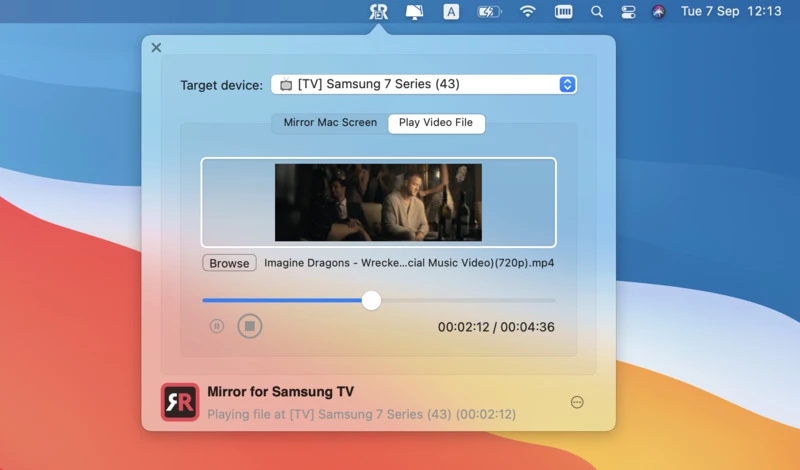
- If you want to play a particular file, use the ‘play video file’ button to search for a video.
- You can use the mirror function to mirror your entire screen and audio to your device.
- Hit ‘start mirroring’ to start enjoying your content.
Pros
- User-friendly interface
- Ability to mirror a single file or app
- Compatible with a wide range of smart TVs
Cons
- Mirroring without sound in the free version
- Limited features in the free trial
- The service occasionally crashes
Screen Mirroring Mac to Samsung TV with HDMI
If your TV does not support AirPlay or you’d prefer to do things the “old-fashioned” way, then you can use an HDMI cable, taking the output from your Mac and connecting it to your TV. This works best with a Mac Mini, where you don’t have a monitor, or even with a Macbook.
What do You Need to Prepare?
To get connected, you will need an HDMI cable, and you may also need an adapter. If your Mac doesn’t have an HDMI port, then you can use the Thunderbolt or DVI port, but you will need a Thunderbolt/DVI to HDMI adapter.
Steps to Connect Samsung TV to Your Mac with a Cable
- Work out the output of your Mac, and if required, connect an adapter to turn the Thunderbolt or DVI port into an HDMI output.
- Connect the adapter (or directly connect an HDMI output) to the input of the television using your HDMI cable.
- Go to the Apple Menu and then ‘System Settings’ and then click ‘Displays’ in the sidebar, which will allow you to choose the best resolution. For a big screen, the higher, the better.
- If you want to play audio, you will also need to click ‘Sound’ in the sidebar of ‘System Settings’ and click ‘Output,’ where you can choose your TV as the output device for sound.
FAQ
Your Mac might not screen mirror your Samsung TV due to network issues, outdated software, or incompatible AirPlay settings. Make sure both devices are on the same Wi-Fi network, AirPlay is enabled, and your macOS and TV firmware are up to date.
If AirPlay isn’t letting you view content from your Mac on your Samsung TV, check if it is a compatible model. If it is, ensure both devices are connected to the same Wi-Fi and that the connection is working as expected.
To check if your Samsung TV has AirPlay, go to Settings › General › Apple AirPlay Settings. If you see this menu, your TV supports AirPlay. You can also check your TV’s model year — most Samsung smart TVs made in 2018 or later include built-in AirPlay support.
Users situation: